
Creating an order
An order is a sale that has been agreed but not yet invoiced: it reserves the products for the customer, tracks delivery and payment, and is turned into an invoice with one click when the goods ship. Web-shop purchases arrive as orders automatically; to create one by hand, open a new order, pick the buyer, add the products and save.
Open it from Sales → Orders → Create, or click the Order (…) shortcut in the top bar and choose Create a new order.
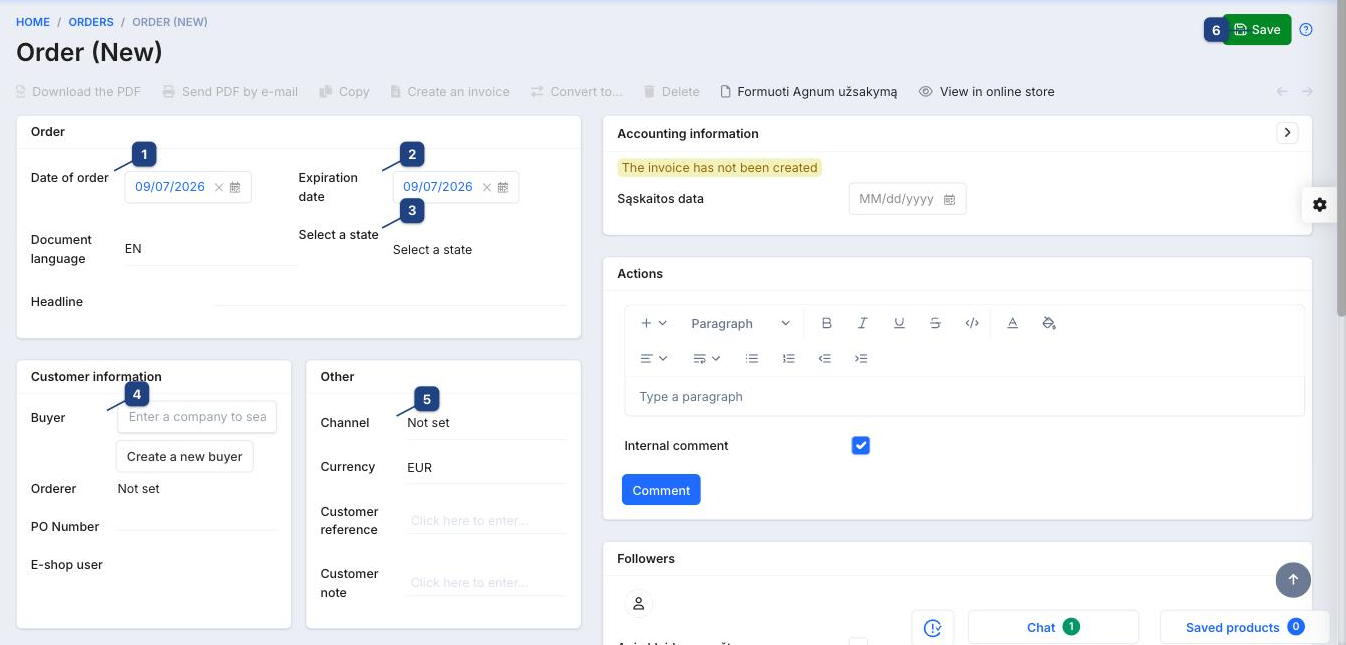
1 Date of order and 2 Expiration date
When the order was placed and until when the price and reservation hold. Expired orders are highlighted in the list.
3 Select a state
The order status (new, confirmed, packed, shipped, …). Statuses and the emails they trigger are defined under Sales → Orders → Statuses; see Order status change email. Document language picks the language of the PDF and emails; Headline is a free title shown on the printout.
4 Buyer
Search the company in Enter a company to search, or use Create a new buyer to add it on the spot (company form). Orderer is the contact person, PO Number the customer's own purchase order reference, and E-shop user the web account the order belongs to.
5 Channel
Where the order came from (shop, phone, marketplace). Currency, Customer reference and Customer note complete the header.
6 Save
Saves the order and enables the header actions: Download the PDF, Send PDF by e-mail, Copy, Create an invoice, Convert to… (quote, proforma) and Delete. View in online store opens the customer's view of the order.
Products, delivery and payment
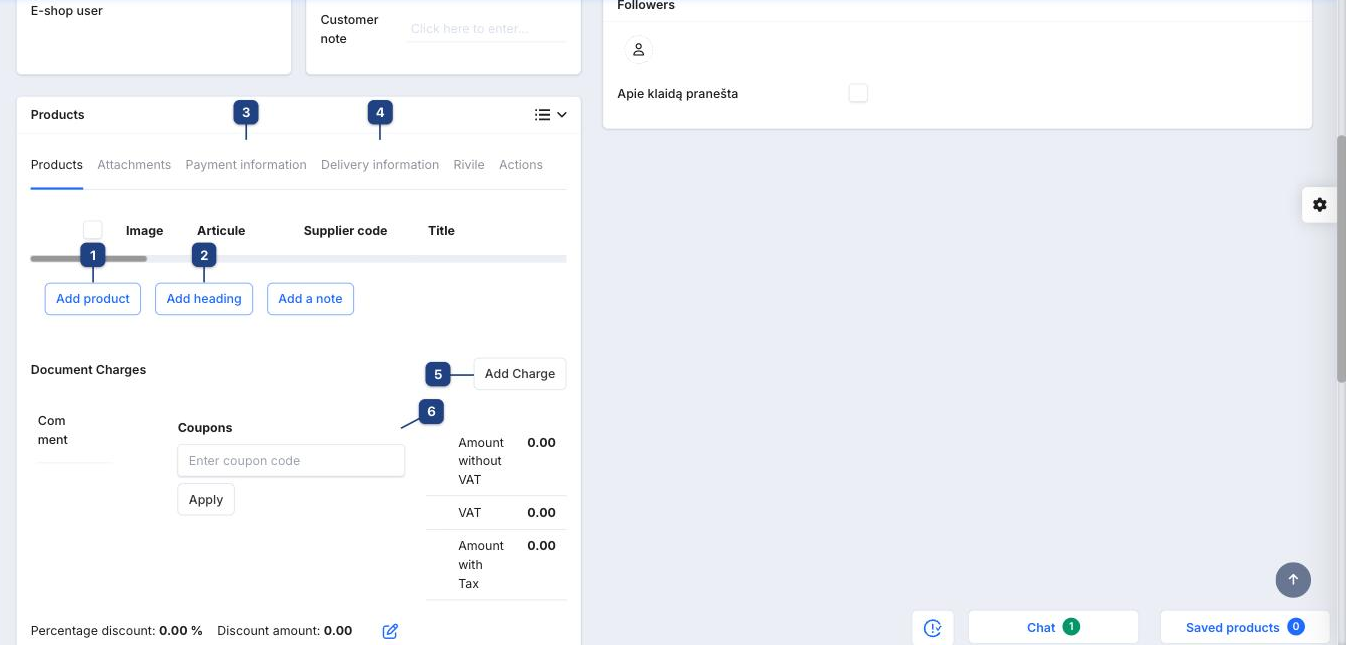
1 Add product
Adds a line: search by name, article or barcode, then set Quantity, Price and Percentage discount. Lines show the packaging, VAT class and amounts with and without tax. Purchase orders on a line link it to a supplier order when the item must be bought in — see Create PO from order.
2 Add heading / Add a note
Structure long orders: a heading groups the lines below it; a note is free text printed on the document.
3 Payment information
Payment method, amount paid and the payment status. Online payments from the web shop land here automatically.
4 Delivery information
Shipping method, delivery address and parcel details. Carrier integrations (Omniva, Venipak, DPD, …) create the shipment and print the label from this tab.
5 Add Charge and 6 Coupons
Document Charges adds shipping or handling as a separate line. Coupons → Apply applies a coupon code, which recalculates Percentage discount, Discount amount and the totals.
From order to invoice
- Set the order state as it progresses (confirmed → packed → shipped).
- Click Create an invoice in the header. The invoice copies the buyer, lines and prices and takes the goods out of stock; the order links to it under Accounting information (The invoice has not been created until then).
- Record the payment on the invoice — see Creating a sale (invoice).