
Creating a purchase / entering stock
A purchase is a supplier's invoice entered into the system: it adds the goods to a warehouse, records what you owe the supplier and books the cost and VAT. It is also the way to enter opening stock balances when you start using the system. To create a purchase, open a new purchase document, enter the supplier's invoice number and date, pick the supplier and the warehouse, add the lines and save.
Open the list from Purchases → Invoices and click Create a new purchase, or use the Purchase (…) shortcut in the top bar.
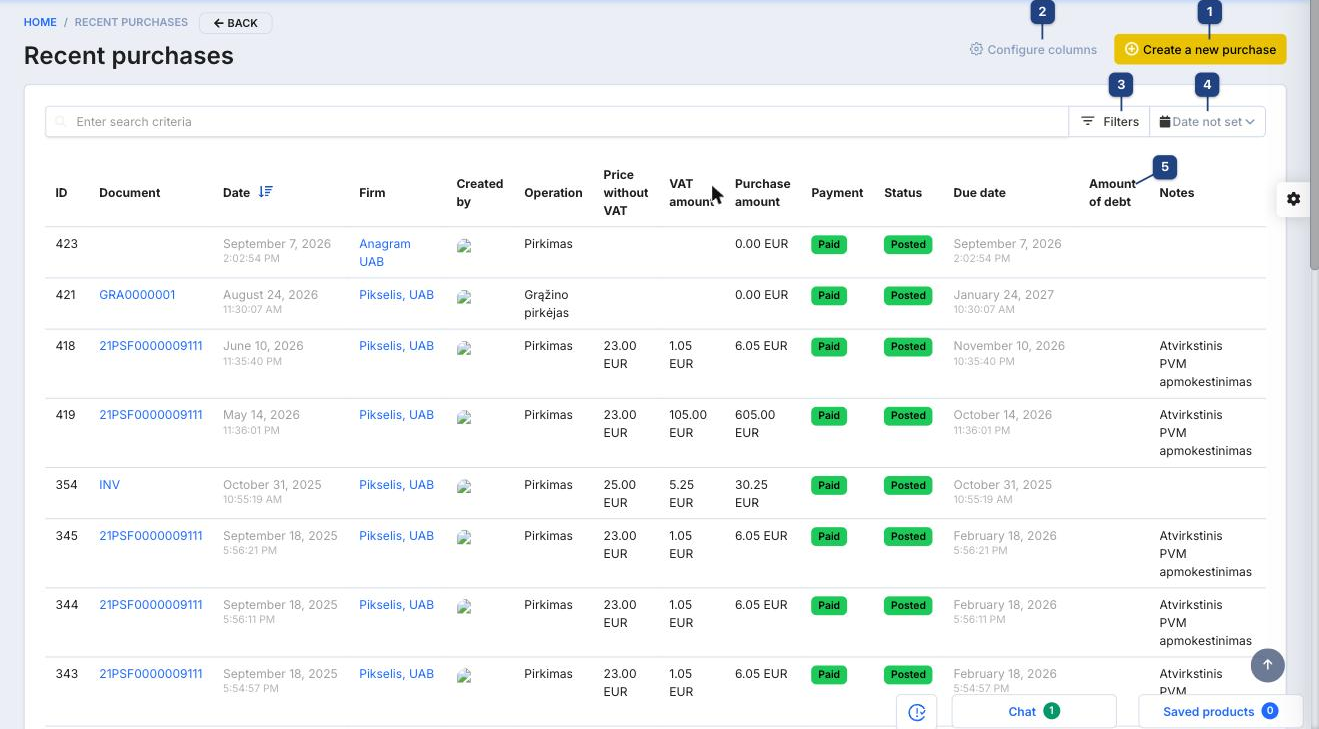
1 Create a new purchase
Opens the empty purchase document (below).
2 Configure columns
Choose the list columns (document, date, firm, operation, amounts, payment, status, due date, debt, notes).
3 Filters and 4 Date not set
Filter by supplier, operation, payment or status, and by document date range. The search box above finds a document by number, supplier or note.
5 Amount of debt
What is still unpaid on each purchase. Payment and Status show whether the supplier has been paid and whether the document is posted.
The purchase document
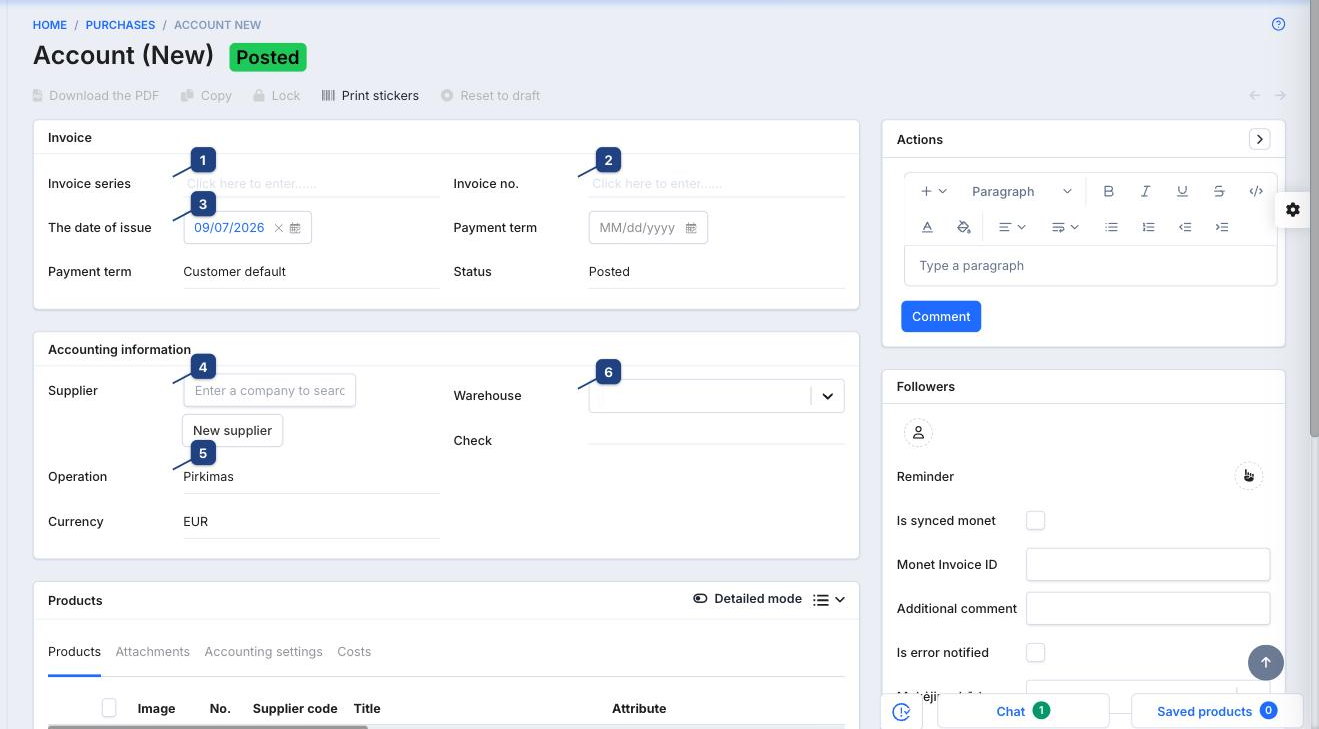
1 Invoice series and 2 Invoice no.
Copy them from the supplier's document: the series prefix and the number as printed. Together they identify the invoice, and the system warns if a document with the same number from the same supplier already exists. For opening balances use a series of your own, for example INV.
3 The date of issue
The supplier's invoice date. It decides the accounting period and, with Payment term, the due date. Payment term defaults to the supplier's Customer default from its company card.
4 Supplier
Type part of the name or code in Enter a company to search and pick the supplier. If it is not in the system, New supplier opens the company form in place. For an opening-balance document enter your own company as the supplier.
5 Operation
The accounting operation for the document. The standard set is:
- Pirkimas (purchase) — the default: books the supplier debt, the cost and the VAT.
- Pradinis likutis (opening balance) — brings stock into the system without a supplier invoice. Use it once, when you start, with your own company as the supplier.
- Grąžino pirkėjas (returned by customer) — goods coming back from a customer into stock.
- Skola tiekėjui (debt to supplier) — records a liability to the supplier without a stock movement.
Operation names are data: they are defined per tenant under Accounting → Settings → Operations and are shown as entered there, so they appear in Lithuanian even in the English interface. Currency defaults to the company currency.
6 Warehouse
Where the goods are received. Every line of the document adds stock to this warehouse when the document is posted. Check marks the document as verified.
Lines and totals
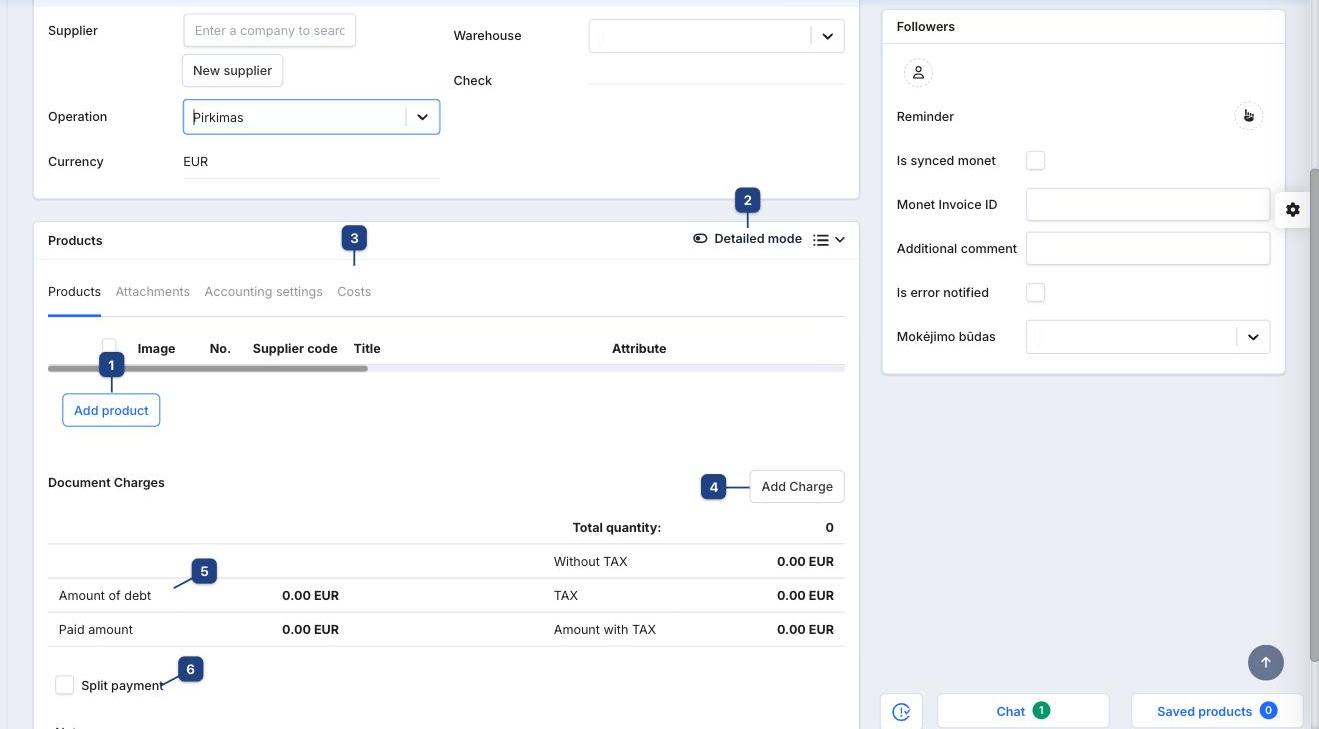
1 Add product
Adds a line. In the row that appears, search by a fragment of the name, your article, the supplier's code or the barcode and pick the product. Then enter Quantity and Price as on the supplier's invoice; Price with VAT, Tax Amount and the line total are calculated from the product's VAT class. Discount % applies a line discount. Repeat for every line.
If a product does not exist yet, create it first (Creating a product) or import the supplier's price list.
2 Detailed mode
Shows the extra line columns (attribute, supplier code, cost price, charges).
3 Costs
The Costs tab spreads additional costs (transport, customs) over the lines so that they raise the products' cost price. Attachments stores the scanned supplier invoice with the document; Accounting settings overrides the default accounts.
4 Add Charge
Document Charges adds a charge that is not a product, such as delivery invoiced on the same document.
5 Totals
Total quantity, Without TAX, TAX and Amount with TAX should match the supplier's invoice. Amount of debt is what you still owe; it drops as payments are matched.
6 Split payment
Tick it when the invoice will be paid in parts; the payment schedule can then be entered per part.
Saving
Click Save (bottom right). On posting, the goods are in the warehouse, the supplier's debt is recorded, and the document shows in the purchases list with Status: Posted. The header actions become available: Download the PDF, Copy (a new purchase with the same lines, handy for recurring deliveries), Lock, Print stickers (barcode labels for the received goods) and Reset to draft.
Paying the supplier
The purchase stays in Amount of debt until a payment is matched: a bank transfer on Bank statements, a cash expense order under Payments → Cash desk, or Payments → Bank → Supplier debt payment.
Related
- Adding stock: which method to use
- Adjusting stock — corrections without a supplier invoice
- Creating a company