
Orders list
Orders lists every customer order with its date, customer, status, linked invoice and total. The same screen has tabs for Proposals (quotes) and Proformas (advance invoices), so all pre-invoice sales documents live in one place. Web-shop orders arrive here automatically.
Open it from Sales → Orders.
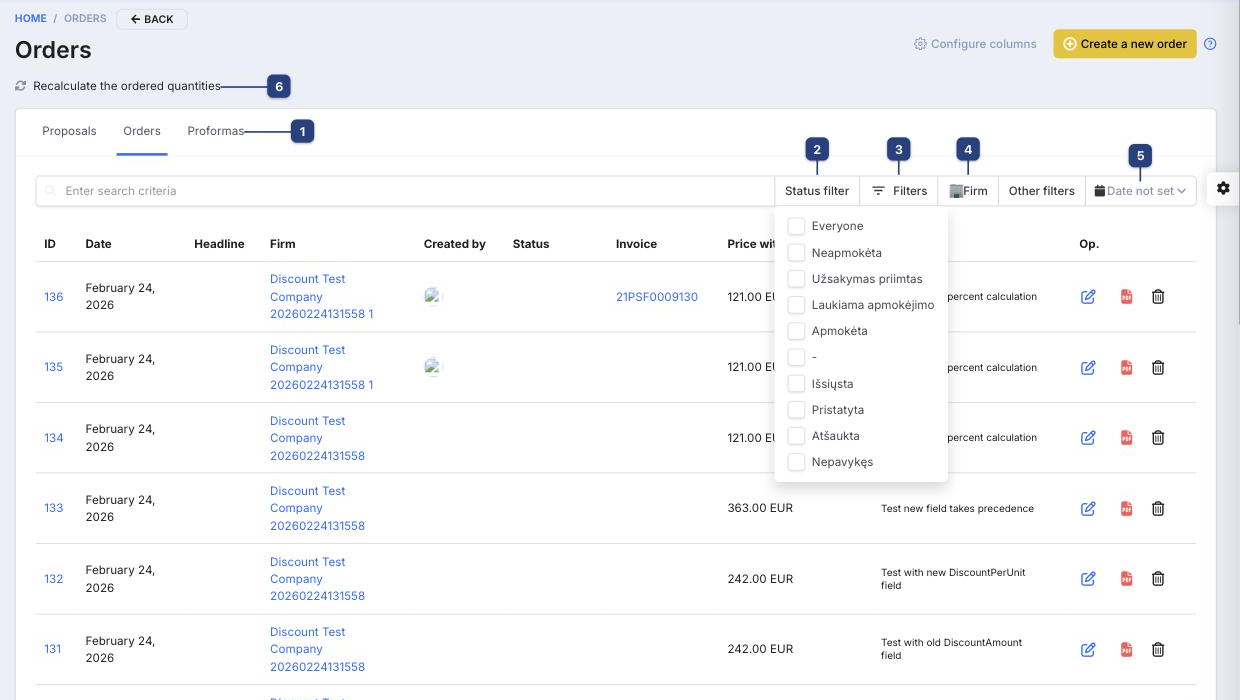
1 Proposals / Orders / Proformas
Switches the document type. Each tab has the same search, filters and columns; only the status list differs, because quotes, orders and proformas each have their own statuses (Sales → … → Statuses).
2 Status filter
Tick one or more statuses to see only those orders — for example unpaid, awaiting payment, shipped or cancelled. Everyone resets the selection. The status names are the ones you defined under Sales → Orders → Statuses.
3 Filters
Add filter narrows the list by a preset criterion. Advanced filters builds your own: pick a field (for example the delivery name), a comparison and a value, click Add criteria and then Search. Several criteria combine.
4 Firm
Type a few letters of the customer's name to show only that company's orders. Other filters next to it has Show deleted, which includes orders that were removed.
5 Date not set
Limits the list to an order date range. With no date set the newest orders are shown first.
6 Recalculate the ordered quantities
Rebuilds the "ordered" quantity shown on products and in warehouse stocks from the open orders. Run it if reserved quantities look wrong after imports or manual corrections.
Columns and row actions
The default columns are ID (opens the order), Date, Headline, Firm, Created by, Status, Invoice (the sales invoice created from the order, if any), Price with VAT and Comments. Change them with Configure columns — see Configuring columns.
The icons in the Op. column open the order for editing, download its PDF and delete it. Enter search criteria searches by order number, customer name and comment.
Creating orders
Create a new order opens an empty order — see Creating an order, which also covers converting an order into an invoice.
Related
- Sales overview — how quotes, orders, proformas and invoices fit together
- Creating an order
- Sales invoices list
- Order status change email