
Product list
The List of products is the catalog: every product, variation and set, with its article, code, price, discount, categories and current stock. From here you create products, open them for editing, import and export, and run mass actions on selected rows.
Open it from Products → Products, or click the Product (…) shortcut in the top bar.
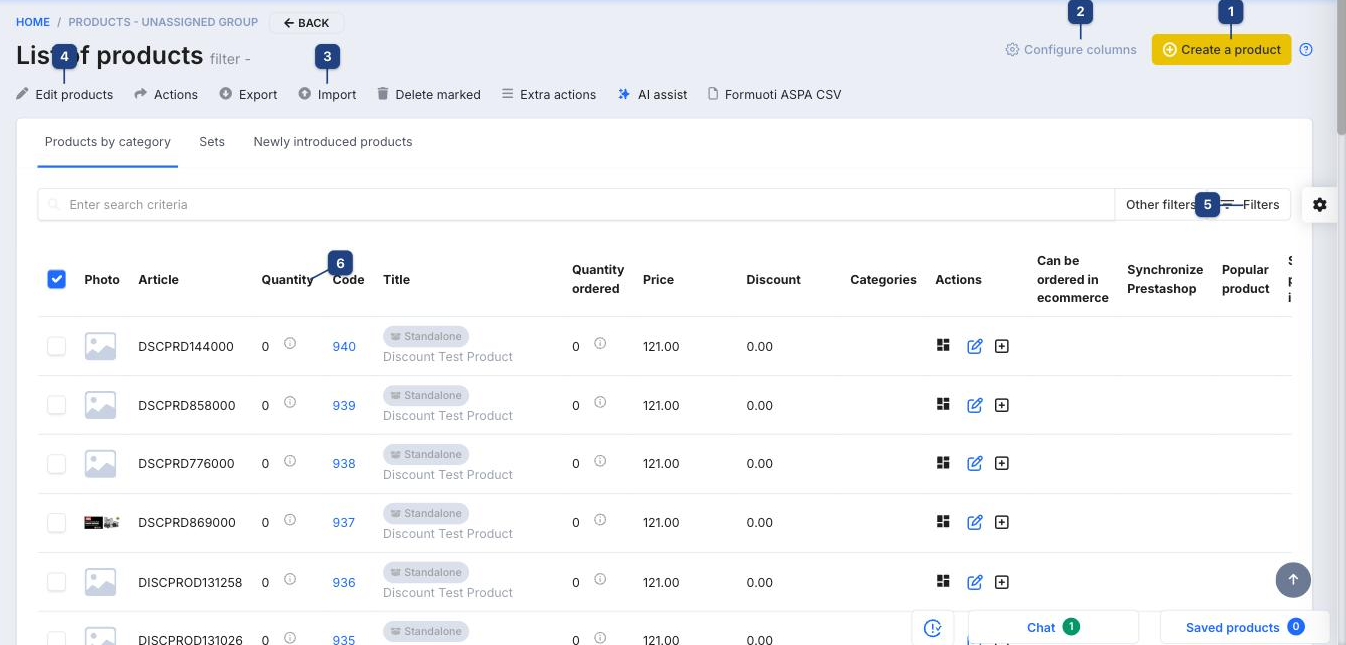
1 Create a product
Opens the new product form. See Creating a product.
2 Configure columns
Choose and order the columns. See Configuring columns.
3 Import / Export
Import loads products from a spreadsheet (Product import); Export downloads the filtered list (Product export).
4 Edit products / Actions / Delete marked
Work on the rows you ticked: Edit products changes prices, categories or flags for all of them at once, Actions and Extra actions hold the other bulk operations (print labels, assign barcodes, sync to marketplaces), Delete marked removes them. See Mass update actions. AI assist drafts descriptions for the selection.
5 Search and filters
Type an article, code, barcode or part of the name into Enter search criteria. Filters opens the filter bar (category, brand, supplier, stock state, e-shop visibility); Other filters lists saved filter sets. The tabs above switch between Products by category, Sets (bundles) and Newly introduced products.
6 Quantity
Total stock across warehouses. The ⓘ next to the number opens the Product quantities window with the per-warehouse breakdown and the Adjust stock button — see Adjusting stock. Quantity ordered is what customers have on open orders.
Row actions
The icons under Actions open the product's turnover, the edit form, and add the product to a new sale. The type badge (Standalone, Main, Variant) tells whether the row is a plain product, a parent with variations, or one of its variants — see Product variations.