
Adjusting stock
Stock changes normally come from documents: a purchase adds quantity, a sale removes it. When you need to change a quantity directly — an opening balance, a stock count correction, damage, a return without a document — use a stock adjustment. There are two ways: the quick Adjust stock window for one product, and the Stock adjustment page for many products at once. Both write a stock document with a reason, so the change is traceable.
Quick adjustment for one product
Open the product's quantities window: click the ⓘ next to Quantity in the product list, or the Stock quantity counter in the product's header. Then click Adjust stock.
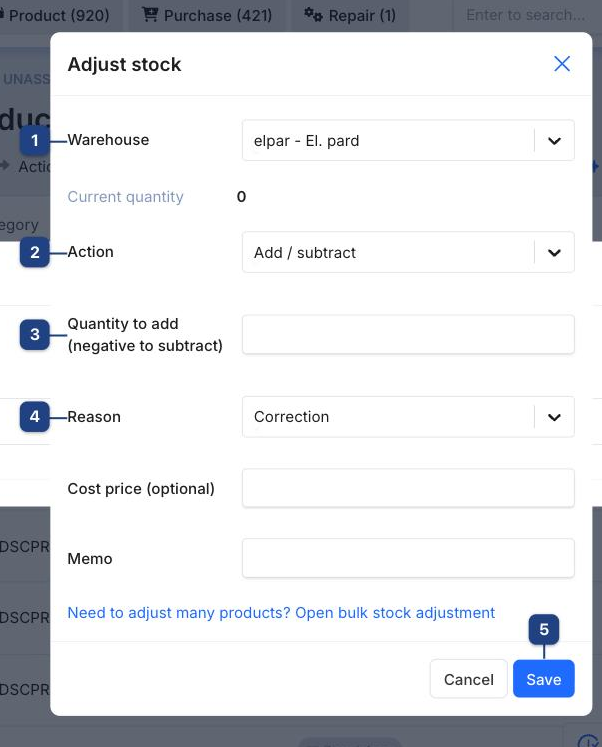
1 Warehouse
Which warehouse the change applies to. Current quantity below it shows the stock in that warehouse before the change.
2 Action
Add / subtract changes the stock by the amount you enter (use a negative number to subtract). Set to replaces the stock with the exact number you enter — use it after a physical count.
3 Quantity
The amount to add, or the new quantity for Set to. Resulting quantity previews the stock after saving and turns red if it would go negative.
4 Reason
Why the stock changed: Correction, Received, Returned, Initial balance, Cycle count, Damage or Shrinkage. The reason is stored on the stock document and shows in the product's turnover. Cost price (optional) sets the unit cost for added quantity (leave empty to keep the current cost); Memo is free text.
5 Save
Applies the change immediately and refreshes the quantities window. Nothing is saved until you click it — Cancel or the × closes without changes.
Bulk adjustment (many products)
Open Inventory → Stock adjustment.
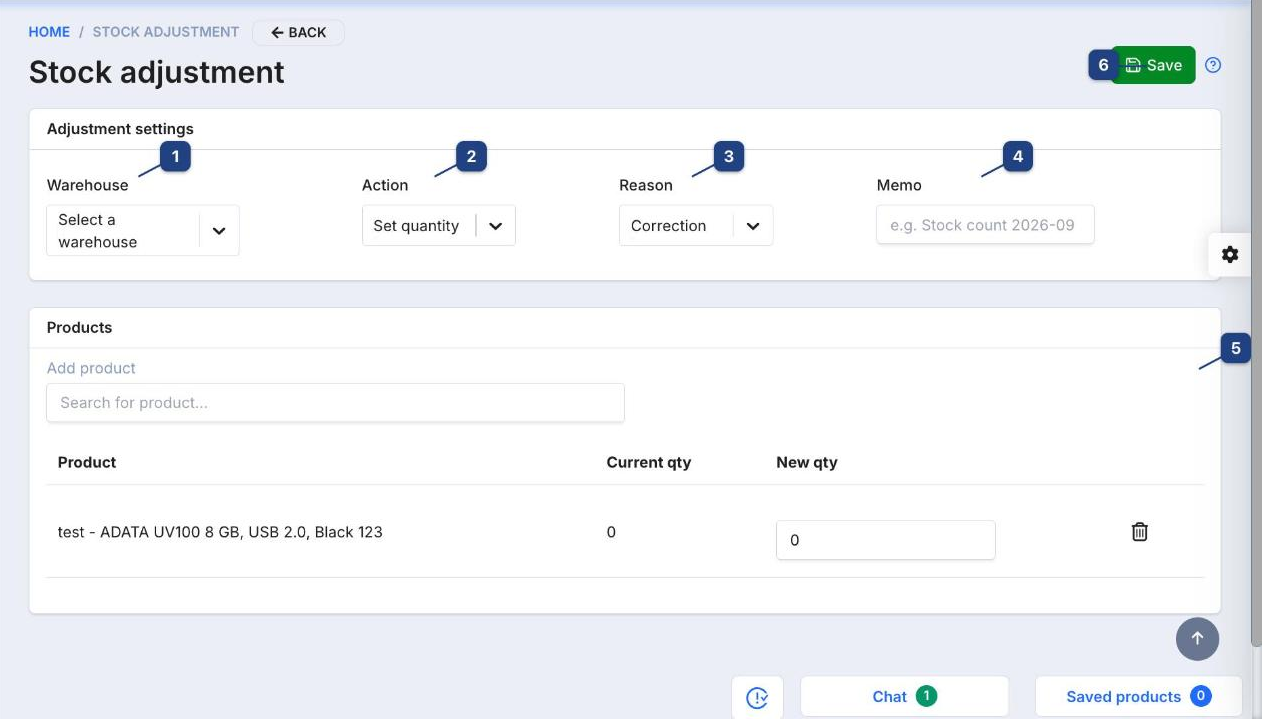
1 Warehouse
Pick the warehouse first; every row in the table is adjusted in this warehouse. Save stays disabled until a warehouse is chosen.
2 Action
The mode for the table. Set quantity shows a New qty column — type the counted quantity per product. Adjust by delta shows Adjust by — type the difference (positive or negative). Switching the mode clears the numbers you typed.
3 Reason
One reason for the whole batch (same list as above).
4 Memo
Free text describing the batch, for example "Stock count 2026-09". It is stored on the stock document.
5 Add product
Search by name, article or barcode and pick a product to add a row in the Products card. The row shows Current qty in the selected warehouse. A product can be added once; the bin icon at the end of the row removes it. Up to 2000 rows per save.
6 Save
Writes one stock document per warehouse. If some rows fail (for example a product that no longer exists), the rest are still applied and the message tells you how many failed.
What an adjustment does
- The product's warehouse quantity changes immediately and shows in the product list, the quantities window and Inventory → Warehouse stocks.
- A stock document is created, visible in the product's turnover, so audits can see who changed what and why.
- Adding quantity with a Cost price updates the product's average cost; adjustments without a cost price use the current cost.
- Adjustments are not purchases: they do not create a supplier debt or a VAT entry. For goods you actually bought, enter a purchase instead.