
Unentered purchases
Unentered purchases is the inbox for supplier invoices that arrived as files: a PDF or a photo is uploaded, the system reads the supplier, number, date and lines from it, and you check the result before it becomes a real purchase document. Nothing touches stock or accounting until you click Confirm invoice.
Open it from Purchases → Unentered purchases.
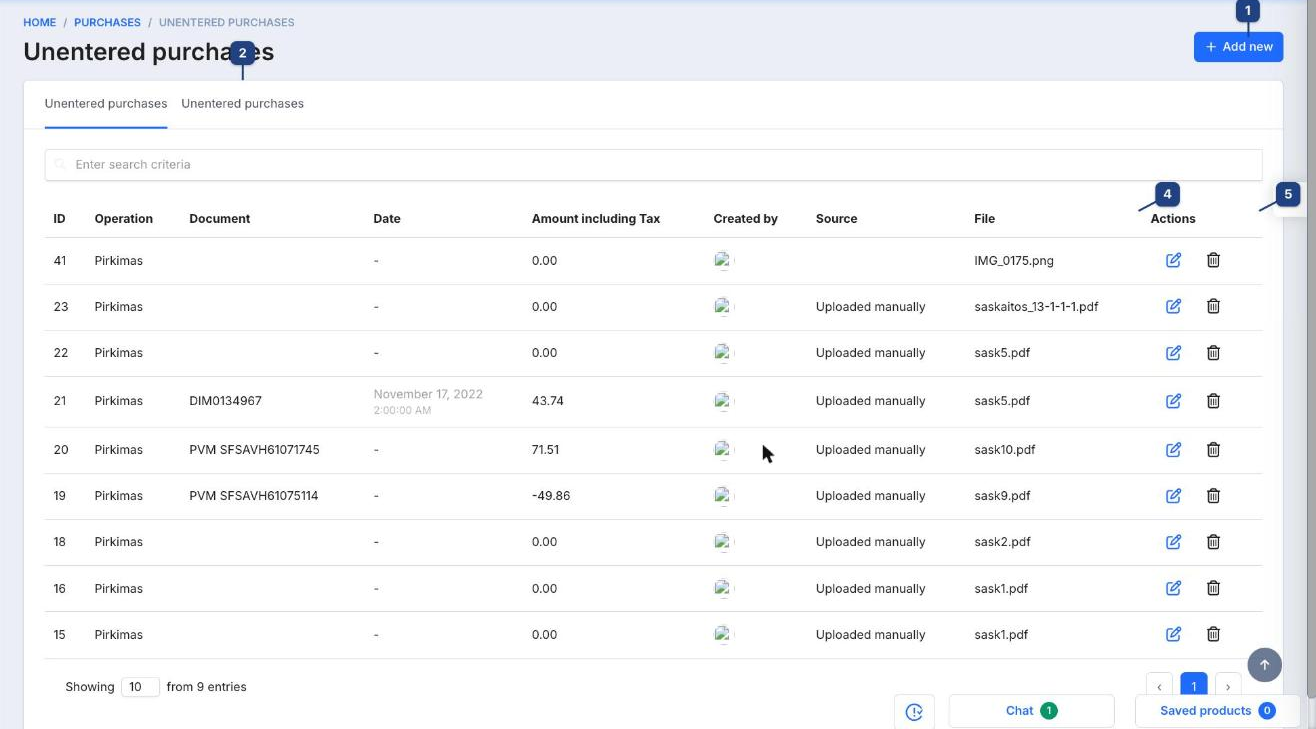
1 Add new
Uploads a file (PDF or image) and starts the scan. Invoices can also arrive here automatically from an email inbox or an integration — the Source column tells you which.
2 Tabs
The first tab lists invoices still waiting; the second lists invoices that were already confirmed or ignored. (Both tabs currently carry the same label.)
3 Search
Finds an invoice by document number.
4 File
The uploaded file name. Document, Date and Amount including Tax are filled in by the scan; an empty document or a 0.00 amount means the scan could not read them and they need to be typed in on the edit page.
5 Actions
The pencil opens the edit page below; the bin deletes the uploaded invoice.
Checking and confirming an invoice
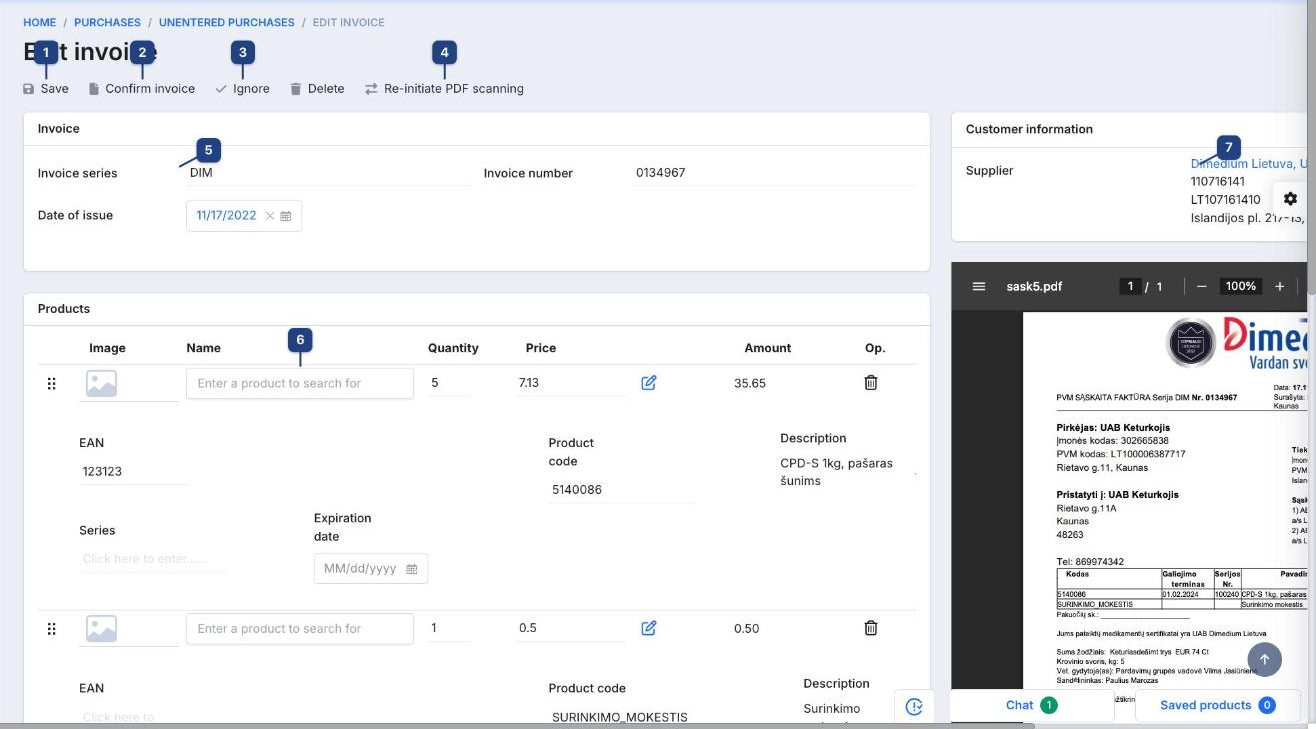
1 Save
Saves your corrections without confirming, so you can come back later.
2 Confirm invoice
Creates the purchase document from the checked data and moves the invoice to the processed tab. After confirming, the invoice is edited as a normal purchase (Creating a purchase).
3 Ignore
Marks the file as not to be entered (a duplicate, a proforma, an invoice for another company). It leaves the waiting list but is kept for reference. Delete removes it completely.
4 Re-initiate PDF scanning
Runs the recognition again, for example after a first scan that read the wrong page or when the scanning service was unavailable.
5 Invoice
Invoice series, Invoice number and Date of issue as read from the file. Correct them if the scan misread a character; the number is checked for duplicates when you confirm.
6 Products
One row per line found on the invoice, with Quantity, Price and Amount. Each row must be linked to a product in your catalog: type into Enter a product to search for and pick it. The scan's EAN, Product code and Description under the row help you find the right one, and they are remembered as supplier codes so the next invoice from this supplier matches automatically. Use the pencil to edit a row, the bin to drop it, the grip to reorder, and Add product for a line the scan missed. Without VAT, VAT and Amount including Tax at the bottom should match the file.
7 Supplier
The company matched from the VAT code or name on the invoice. Click it to pick another, or create the supplier if it is new. The original file is shown on the right so you can compare while you check.