
Creating a product
To create a product, open the product list and click Create a product. A product needs only a Name and a Price with VAT to be saved; everything else (photos, brand, categories, barcode, description, e-shop settings) can be filled in now or later on the same form.
Open the list from Products → Products and click Create a product in the top right.
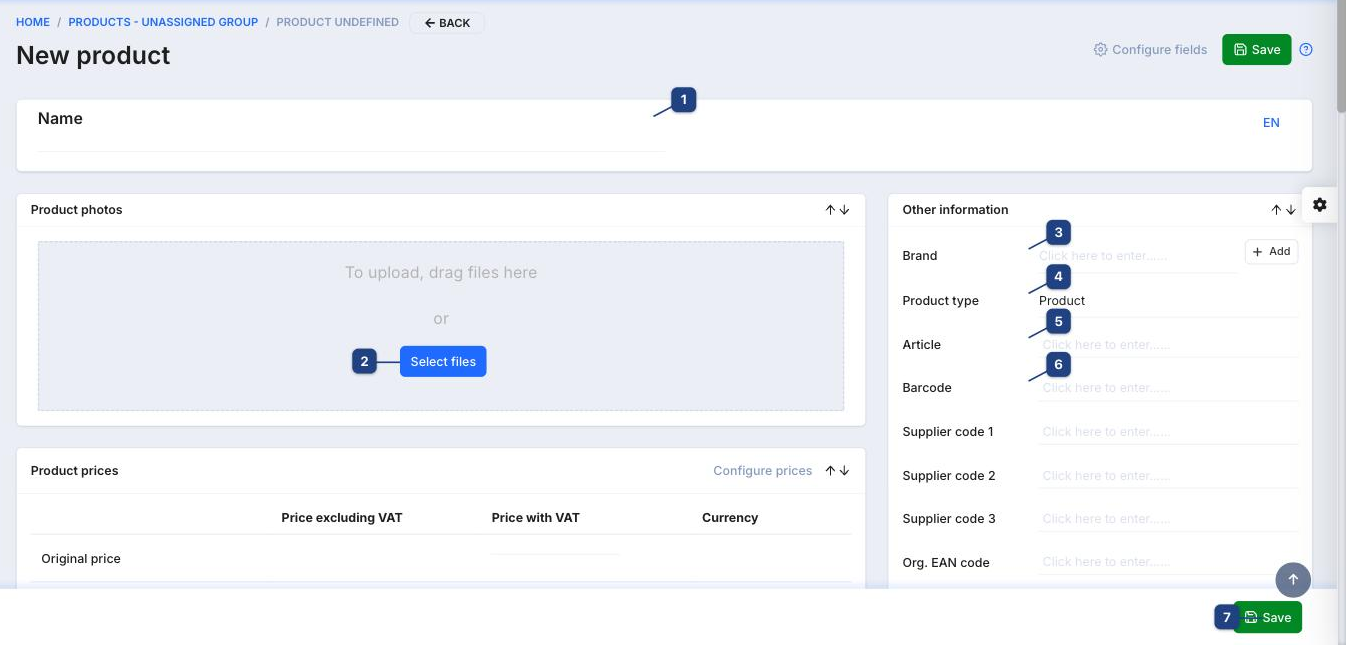
1 Name
The product name, per language (the LT / EN switch on the right). The name is printed on documents and shown in the e-shop.
2 Product photos
Drag image files onto the box or click Select files. The first image is the main one; drag to reorder after upload.
3 Brand → Add
Start typing to pick an existing brand. If it does not exist, click Add, enter the name and confirm with Create brand — the new brand is selected straight away.
4 Product type
Product is a stock item. Other types (service, digital, gift card, set) skip stock tracking or add their own behaviour — see the Other settings block below.
5 Article and 6 Barcode
Article is your own SKU; it is searchable in every product picker. Barcode is the EAN scanned at the POS and on receiving. Supplier code 1–3 and Org. EAN code hold the codes your suppliers use, so purchase documents match automatically.
7 Save
Saves the product. Some blocks — Product features, Tags, variations — say Please save product first: they become editable after the first save.
Prices and VAT
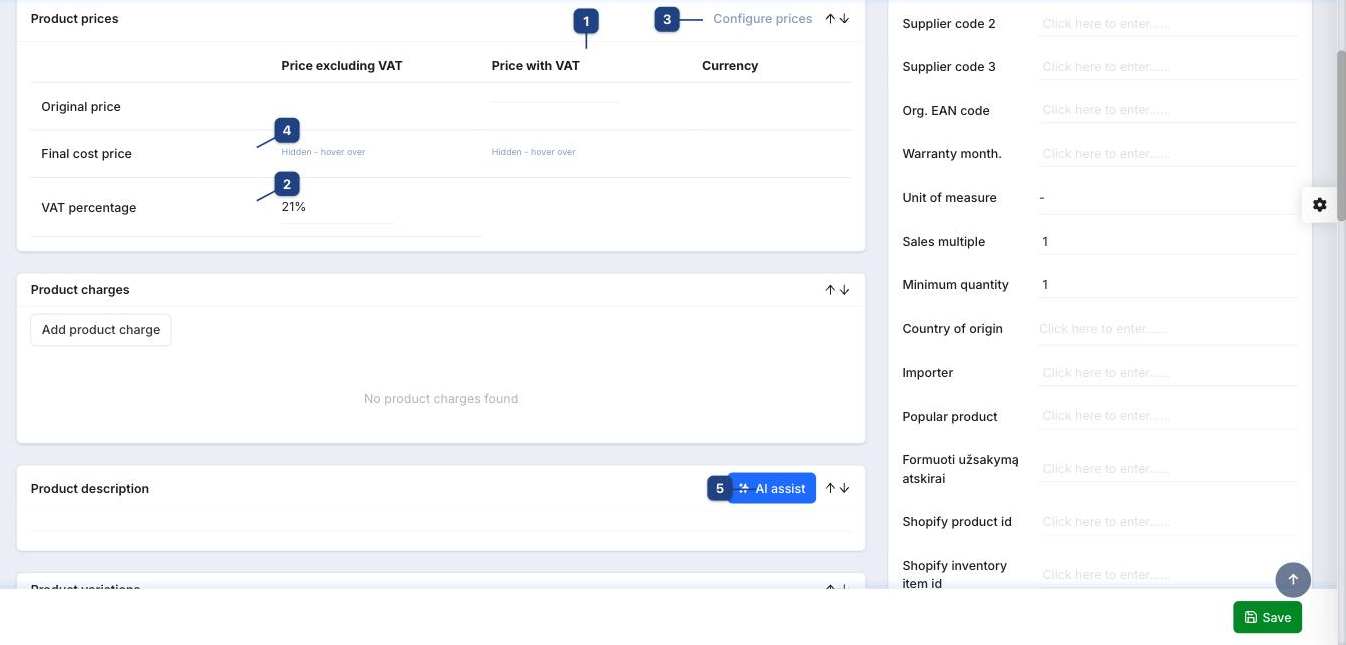
1 Price with VAT
Enter either Price excluding VAT or Price with VAT; the other one is calculated from the VAT rate. Buyer's price is the default selling price; extra price columns (wholesale, price lists) appear when you enable them with Configure prices (3).
2 VAT percentage
Defaults to the standard rate (21%). Change it for reduced-rate or VAT-exempt goods.
4 Final cost price
Read-only. It is updated from purchases (average or last cost, per your accounting setting) and from stock adjustments that carry a cost price. Hover to reveal the value.
5 Product description → AI assist
The rich-text description shown in the e-shop. AI assist drafts one from the name, brand and features; edit the result before saving.
Categories and e-shop settings
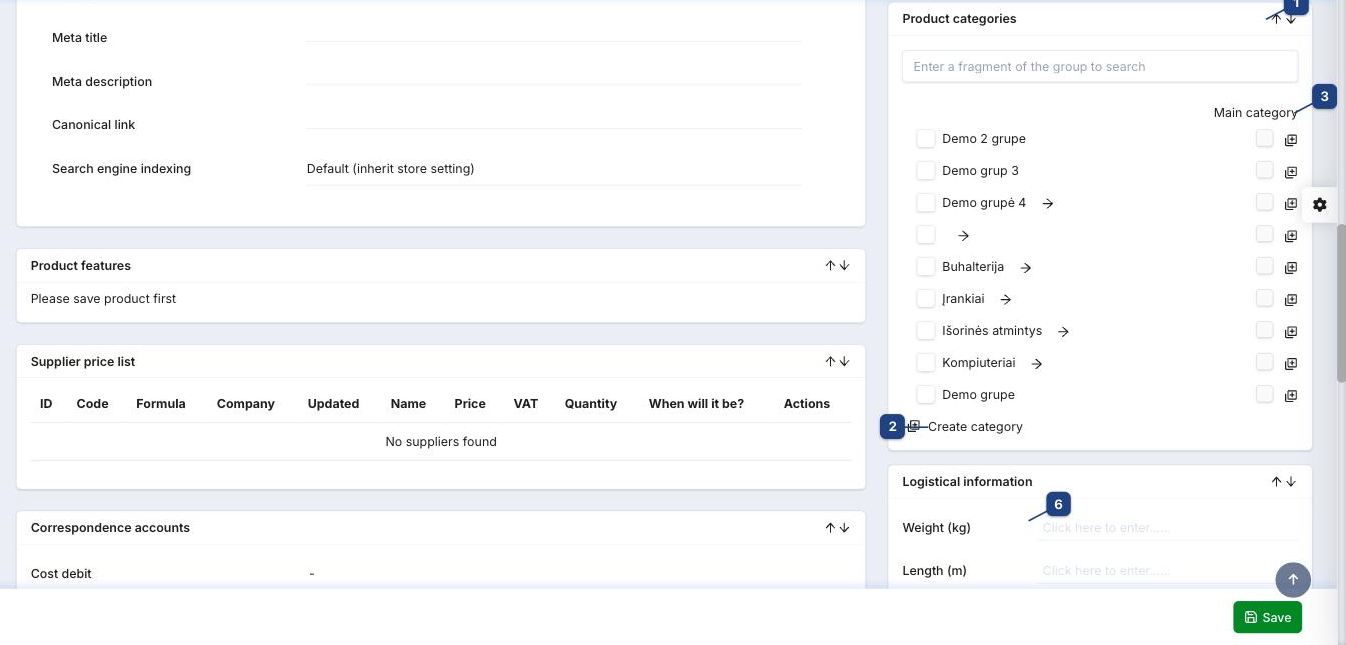
1 Product categories
Tick every category the product belongs to in the tree. A product can sit in several categories.
2 Create category
Creates a new root category without leaving the form. To add a child category, use the + icon next to an existing category in the tree.
3 Main category
Required when the product is in more than one category: the main category decides the product's URL and breadcrumb in the e-shop.
4 Logistical information
Weight (kg), Length / Height / Width (m) and Product location (shelf) feed shipping calculators and the pick list.
Other settings (below the categories)
- Show in e-store — tick it to publish the product on the web shop right away. Untick to keep it internal (still usable on invoices and orders).
- Show in price list — include it in the printable price list.
- Show discount, Discount from / to — a time-limited promotional price.
- Is digital (product), Gift card, End of Life (EOL) — special product behaviours.
Other fields
- Unit of measure, Sales multiple, Minimum quantity — how the product is sold (pcs, kg, packs of 6, …).
- Warranty month., Country of origin, Importer — printed on documents where required.
- E-store settings (Main / SEO / Template) — product link, meta title and description, canonical link and indexing.
- Correspondence accounts — the GL accounts used when the product is bought, sold or written off; leave the defaults unless accounting asks for something specific.
- Supplier price list — supplier items linked to this product with their prices and lead times.
After saving
The saved product gains the Product features (attributes for filtering and variations), Tags, Variations and Activities blocks, plus the Stock quantity counter in the header that opens the per-warehouse quantities. To put the product in stock, either enter a purchase or use Adjust stock.
Related
- Product variations — sizes, colours and other variants of one product
- Adjusting stock
- Product import — create many products from a spreadsheet