
Creating a company (customer or supplier)
Every customer and supplier you trade with is a company record. You create it once, then pick it on invoices, orders, purchases and payments. The same record works as a buyer and as a supplier, so you do not need two entries for a partner you both sell to and buy from. To create a new customer or supplier, open the companies list and click Create New.
Open the list from Catalogs → Companies (or the Sale (…) / Purchase (…) shortcuts in the top bar, which open the sale and purchase forms where a company can also be picked).
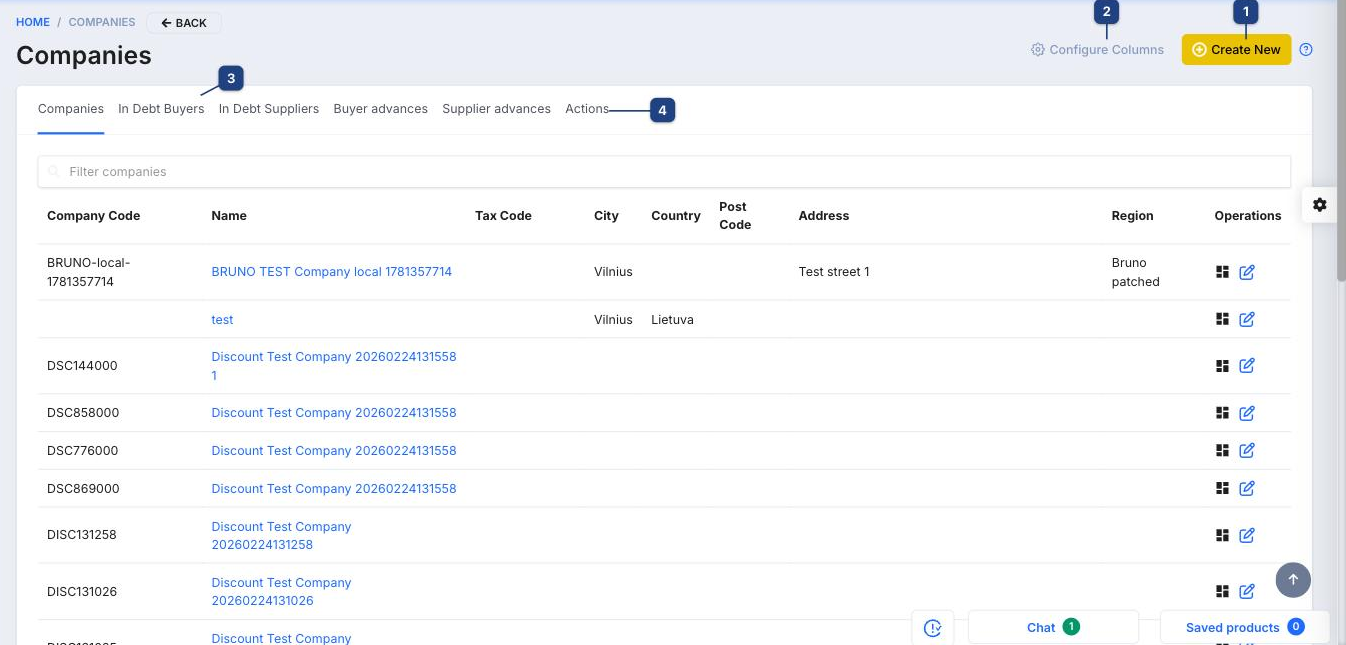
1 Create New
Opens the empty company form (below).
2 Configure Columns
Choose which columns the list shows (code, name, tax code, city, country, post code, address, region). The choice is saved for your user.
3 Tabs
Companies is the full list. In Debt Buyers and In Debt Suppliers show only partners with an open balance, and Buyer advances / Supplier advances show prepayments. Type into Filter companies to search by code or name.
4 Actions
Bulk actions for the selected rows (export, merge, group assignment). Row icons on the right open the company's turnover and the edit form.
The company form
The form opens as Individual - New client. Switch the type first, then fill the fields.
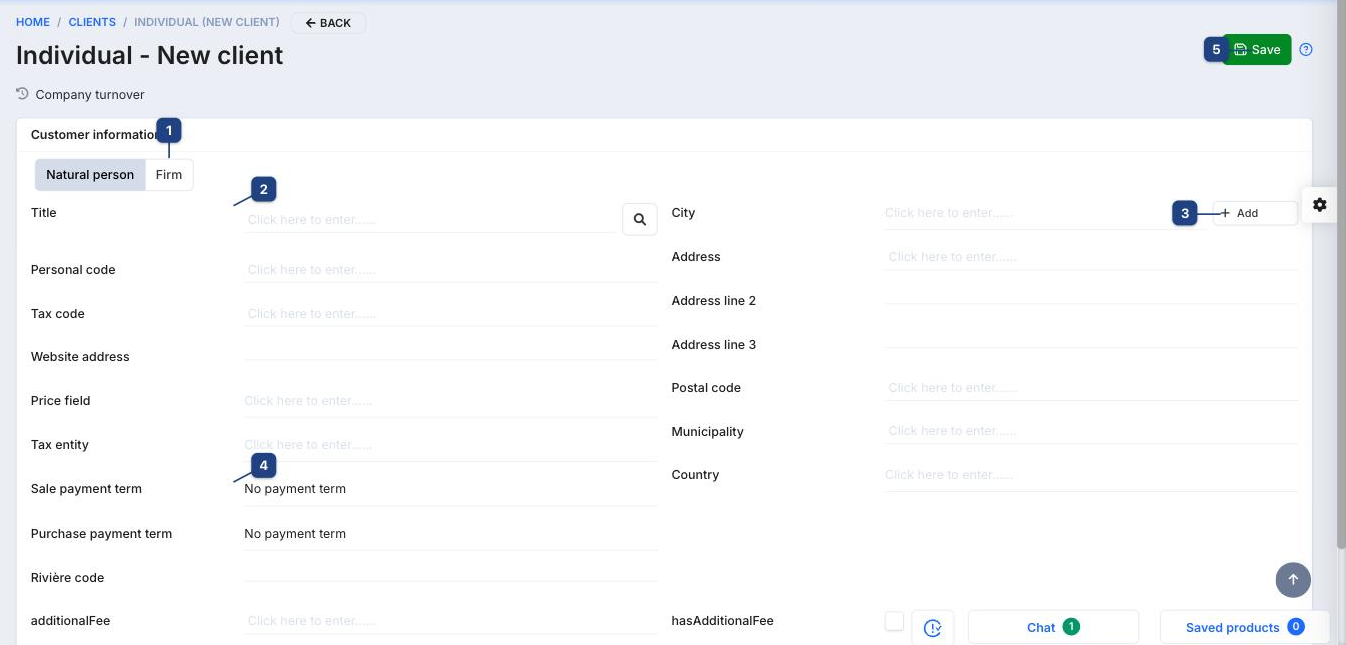
1 Natural person / Firm
Natural person is a private customer: the identifier is a Personal code. Firm is a legal entity with a Client code (registry number) and a Tax code (VAT number). Pick Firm for any business partner.
2 Title
The name shown on documents. This is the only required field. The magnifier next to it searches the company registry, so you can pick an existing legal entity and have its code, address and VAT number filled in for you.
3 City → Add
Cities are a catalog. Start typing to pick one; if it is missing, click Add to create it without leaving the form. Address, Address line 2/3, Postal code, Municipality and Country complete the primary address printed on invoices.
4 Sale / Purchase payment term
Default payment terms. Sale payment term sets the due date on invoices you issue to this company; Purchase payment term does the same for its invoices to you. Both default to No payment term (due on the invoice date). Terms are defined under Accounting → Settings → Payment terms.
5 Save
Saves and opens the company card, where you can add contacts, bank accounts, discounts and custom fields. Company turnover (under the title) opens the sales/purchases history once there are documents.
Firm fields
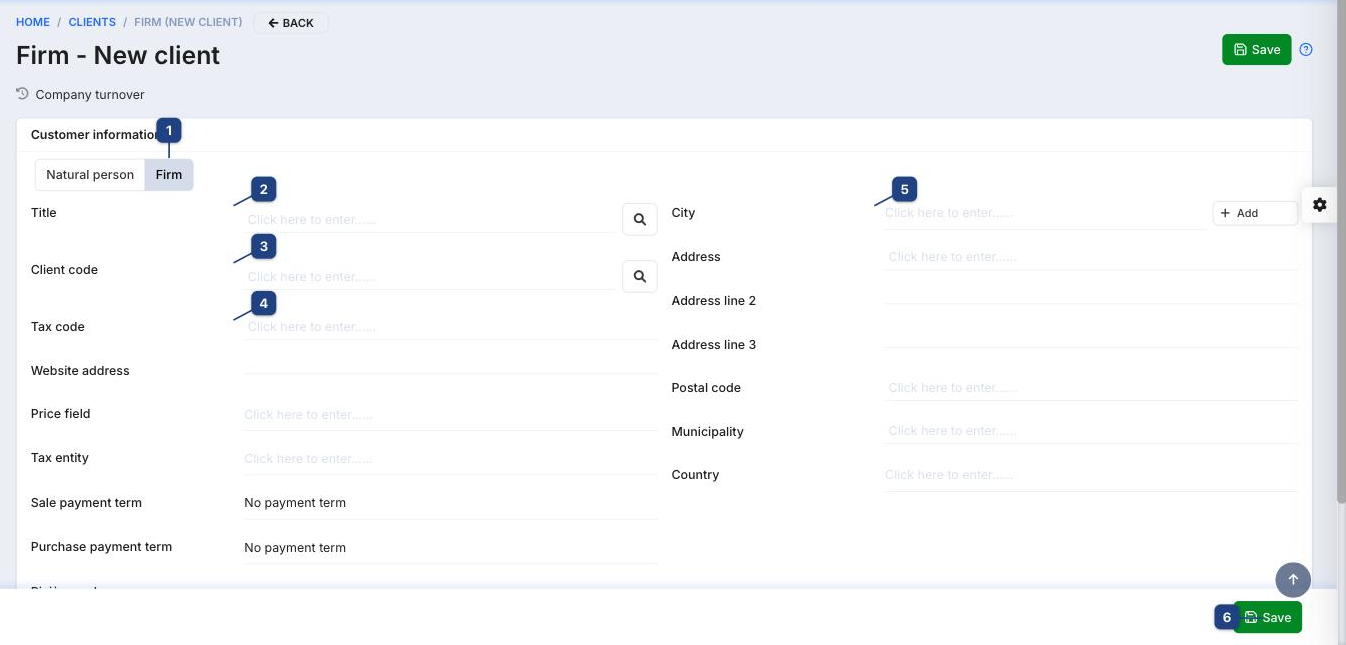
With Firm selected the identifier fields change:
- 3 Client code — the company registration number. The magnifier looks the code up in the registry.
- 4 Tax code — the VAT payer code (for example
LT100005793419). Leave it empty for non-VAT payers; the invoice then prints without a VAT code. - Price field — which product price column this customer gets by default (retail, wholesale, …).
- Tax entity — the VAT treatment used on documents for this partner (domestic, EU, export).
- Website address, additionalFee / hasAdditionalFee, Freight collect — optional; used by e-commerce and shipping integrations.
Related
- Creating a sale (invoice) — the customer is picked from this list
- Creating a purchase — the supplier is picked from this list
- Bank statements — matched payments update the company's debt