
Product variations
A variation is one version of a product that differs only by attributes such as size or colour. The main product carries the shared name, description, photos and categories; each variation has its own product code, price and stock, so it can be sold, scanned and counted separately. In the e-shop the customer sees one product with a size and colour picker. To add variations, open the product and use the Product variations block.
Variations must be enabled once per tenant: Configuration → Settings → cfg_products_use_variations. After that, orders and invoices show the attributes and the variation's image next to the product.
Generating variations from attributes
Open the main product (Products → Products → the product) and scroll to Product variations.
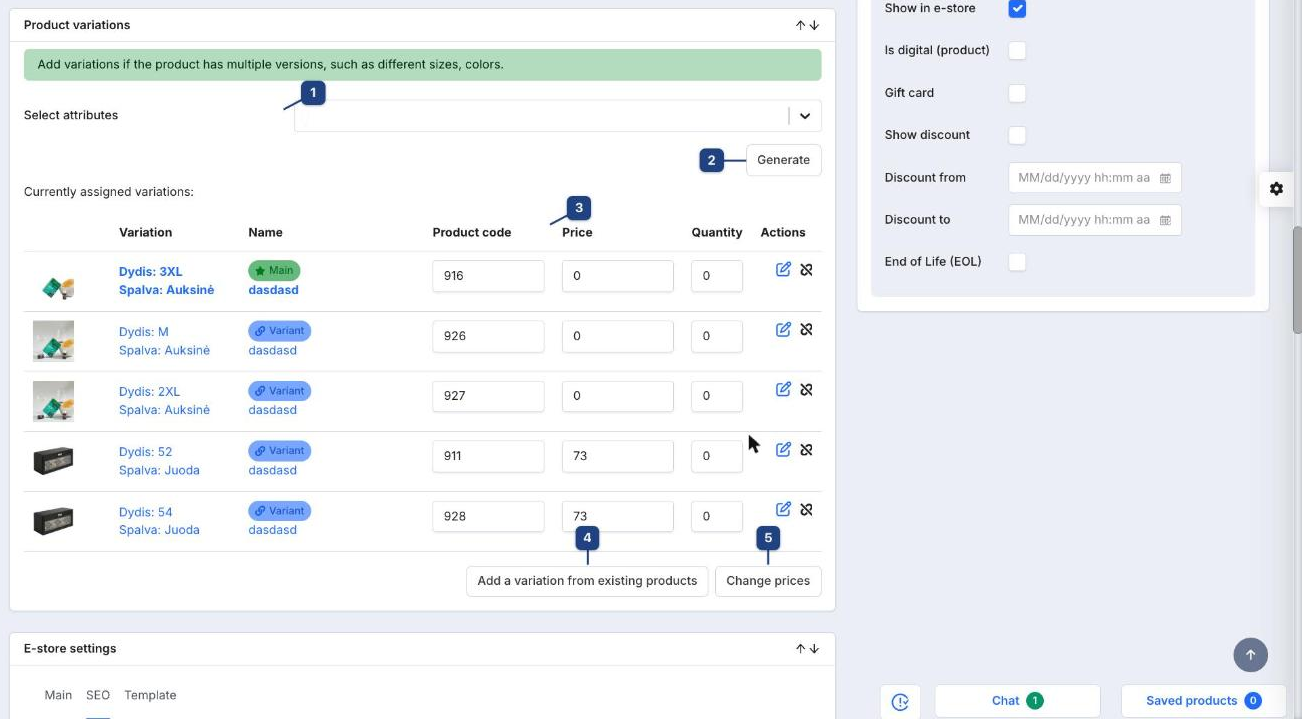
1 Select attributes
Pick the attribute values the product comes in, for example Dydis: M, Dydis: L and Spalva: Juoda. Attributes and their values are defined under Products → Attributes; only values that exist there can be selected.
2 Generate
Creates one variation per unique combination. Two sizes and one colour give two variations; two sizes and two colours give four. Each new variation is a real product (with its own code) linked to the main one, and it inherits the main product's name, description, categories and photos.
3 Currently assigned variations
The table lists the Main product and every Variant with its attributes. Product code, Price and Quantity are editable in place, so you can price the variants or type an opening stock without opening each one. The Actions icons are the pencil (edit attributes, see below) and the broken-link icon, which separates the variation into a standalone product again.
4 Add a variation from existing products
Turns a product that already exists into a variation of this one (see the section below).
5 Change prices
Applies a price change to all variations at once instead of editing each row.
Editing one variation
Click the pencil in the variation's row.
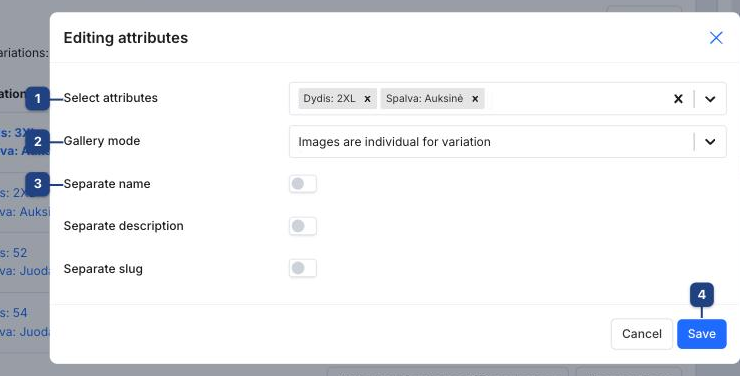
1 Select attributes
The attribute values that identify this variation. Change them here if a variant was generated with the wrong combination.
2 Gallery mode
How the variation's images relate to the main product's images in the e-shop:
- Inherited images — the variation shows exactly the main product's gallery. Use it when the variants look the same.
- Images are individual for variation — the variation has its own gallery only. Use it when each variant looks different (colours, designs).
- Images added before — the variation's own images come first, then the main product's.
- Images added after — the main product's images come first, then the variation's.
3 Separate name / description / slug
By default a variation reuses the main product's name, description and web address. Switch a toggle on to give this variation its own text or its own URL (for example when the e-shop should have a separate landing page per colour).
4 Save
Saves the dialog. The row updates immediately.
Assigning an existing product as a variation
If the variants were created as separate products earlier, link them instead of generating new ones.
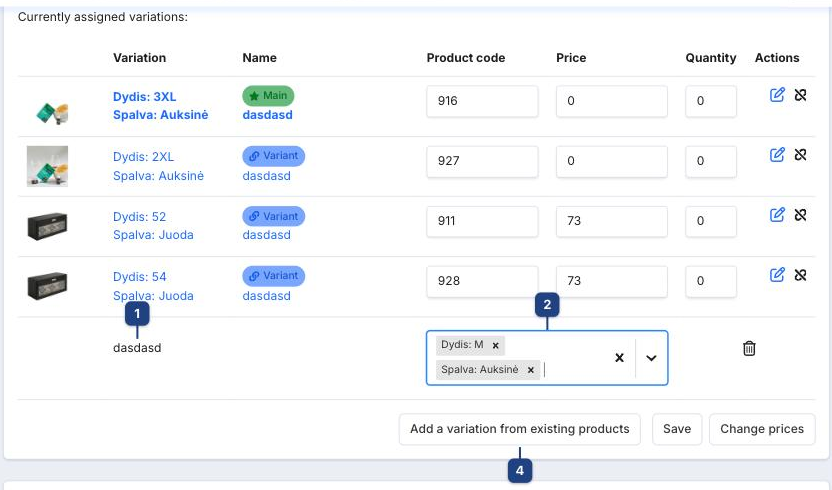
- Click Add a variation from existing products (4). A new row appears under the table.
- 1 In Product search, type part of the name, article or code and pick the product. Only standalone products are offered; a product that is already a variation of something else does not appear.
- 2 Choose the attribute values that describe this product, for example Dydis: M and Spalva: Auksinė. Every variation of one main product needs a different combination.
- Repeat for more products, then click Save (3). The rows turn into Variant entries; the products keep their codes, prices and stock.
To undo, use the broken-link icon in the row: the product becomes standalone again and keeps its data.
Photos for variations
The Product photos block of a variation has two extra buttons.
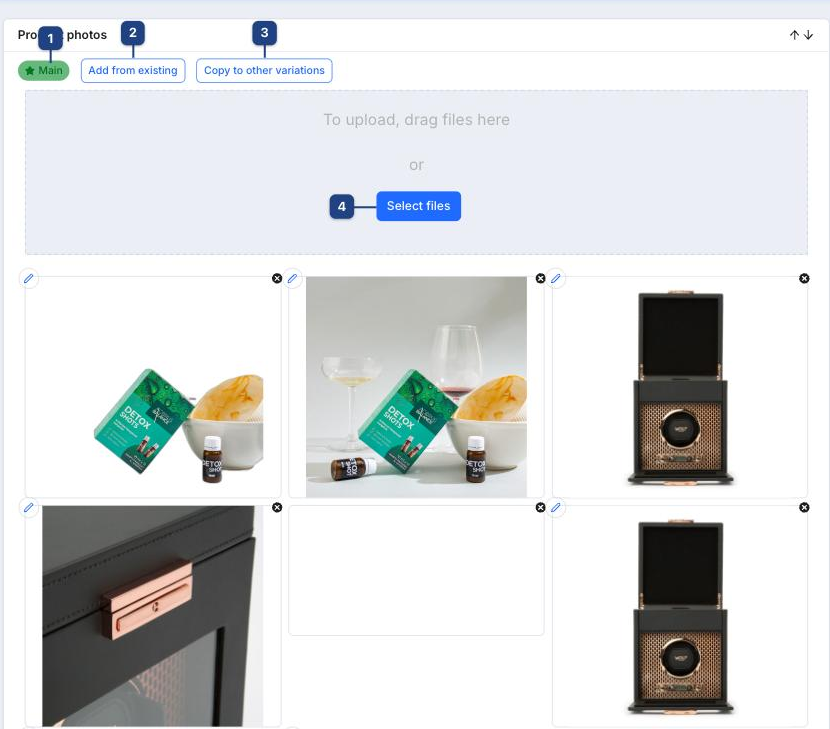
- 1 Main marks the picture used as the thumbnail in lists and the e-shop.
- 2 Add from existing picks pictures already uploaded to the main product or another variation, without uploading again.
- 3 Copy to other variations pushes this variation's pictures to its siblings, handy right after generating variants of the same colour.
- 4 Select files uploads new pictures for this variation only.
Whether these pictures replace or extend the main product's gallery is decided by the variation's Gallery mode (above).
Related
- Creating a product
- Product list — the type badge shows Main, Variant or Standalone
- Adjusting stock — stock is tracked per variation