
Mass update actions
You can change several products in one go from the product list: tick the rows, then use the toolbar. Actions sets flags, discounts and categories for the whole selection; Edit products switches the list into inline editing; Delete marked removes the selection; Extra actions holds the rarer operations.
Open Products → Products.
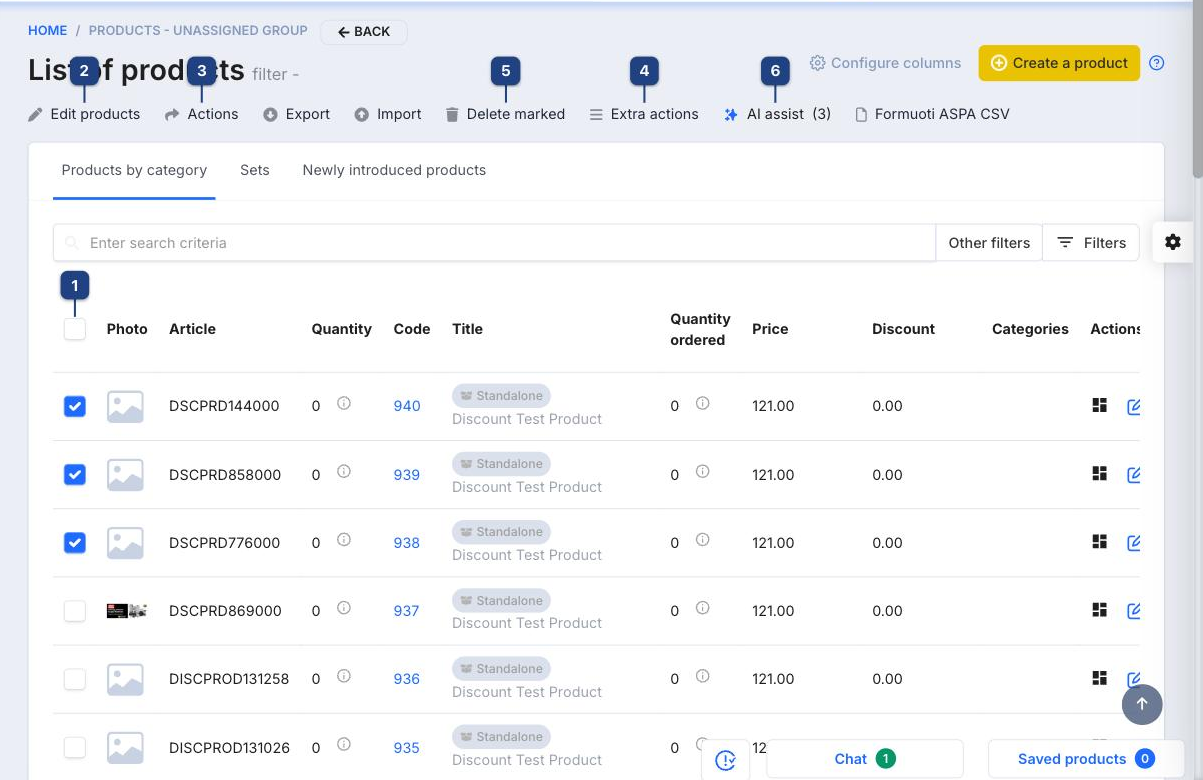
1 Selecting products
Tick the checkbox at the start of each row. The checkbox in the header ticks every row on the current page; use the search and Filters first to narrow the list to what you want to change. The number of ticked products shows in AI assist (n) and at the top of the Actions panel.
2 Edit products
Turns the visible cells (article, title, price, discount, flags) into inputs so you can correct several rows by hand without opening each product. Click Edit products again to leave the mode; changes are saved per row.
3 Actions
Opens the panel described below.
4 Extra actions
Merge variations — makes the ticked products variations of one main product (see Product variations).
5 Delete marked
Deletes the ticked products after a confirmation. Products that appear on documents cannot be deleted; deactivate them instead (untick Show in e-store and Show price list).
6 AI assist
Drafts descriptions or SEO texts for the ticked products in a batch job.
The Actions panel
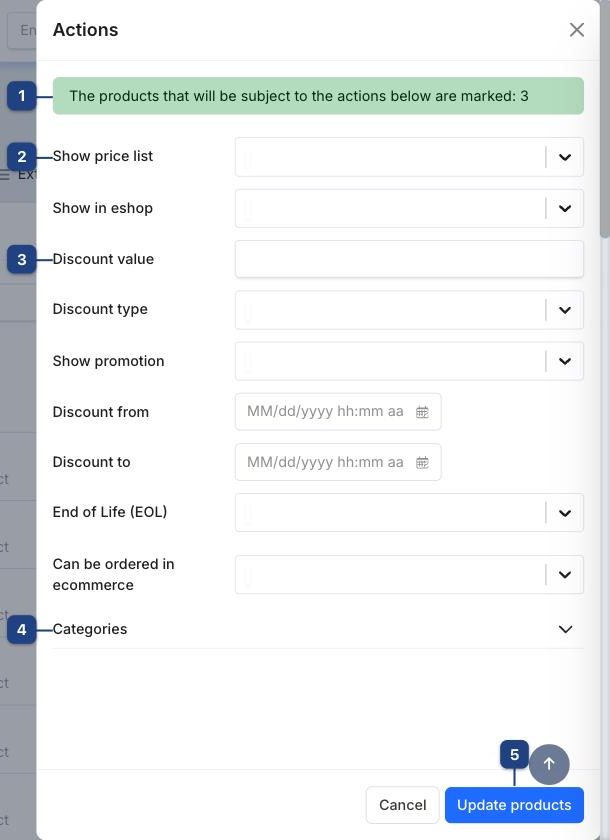
1 Marked products
The green line confirms how many products the panel will update. Close the panel and change the selection if the number is wrong.
2 Flags
Show price list, Show in eshop, Show promotion, End of Life (EOL) and Can be ordered in ecommerce are Yes/No selects. Leave a field empty to keep each product's current value; pick Yes or No to set it on every ticked product.
A value that a product already has is written again: the product's edit date changes and it is included in the next marketplace synchronisation. Use this deliberately when you want to force a re-sync.
3 Discount
Discount value with Discount type (percent or amount) and the optional Discount from / Discount to dates put the same promotion on every ticked product. Clear the value to remove it.
4 Categories
Expands to the category tree. Ticked categories are added to the products; existing categories stay unless you untick them here.
5 Update products
Applies every filled-in field to the marked products and refreshes the list. Cancel closes the panel without changes.
Related
- Product list
- Configuring columns — show the flag columns you are changing
- Product import — for changes that come from a spreadsheet