
Configuring columns
The product list shows a default set of columns. To add, remove or reorder them, click Configure columns at the top of the list. The layout is saved for your user, so each person can keep the columns they work with.
Open Products → Products → Configure columns.
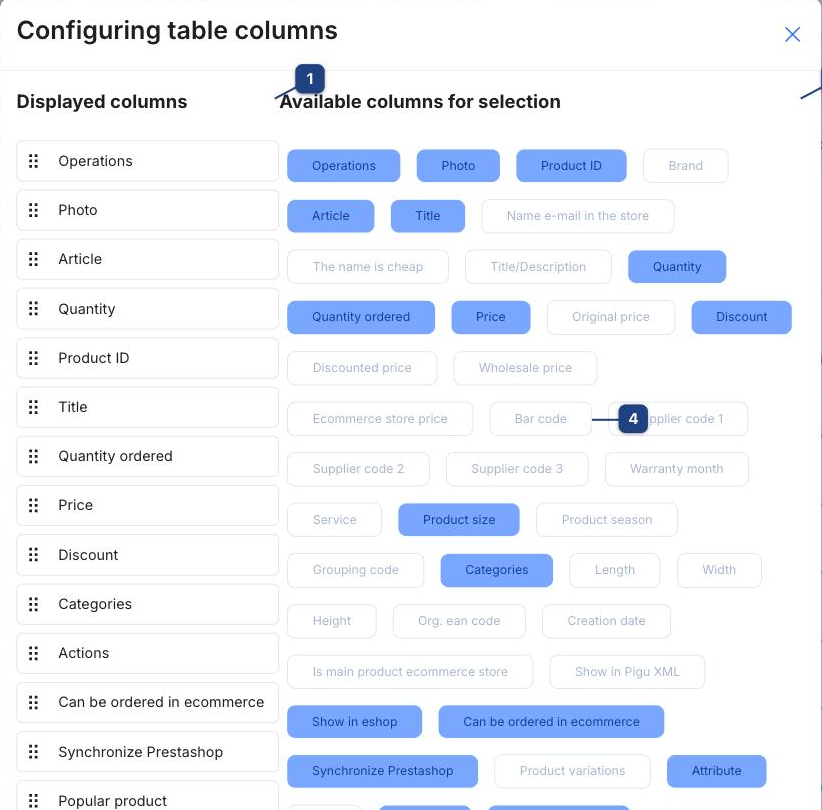
1 Displayed columns
The columns currently in the table, in their order from left to right. Drag a row by its grip handle (the six dots) to move the column.
2 Available columns for selection
Every column the list can show. A blue chip is already displayed; a white chip is not. Click a chip to add or remove it — it appears in, or disappears from, the left-hand list immediately.
4 Useful columns that are off by default
Bar code, Supplier code 1–3, Wholesale price, Discounted price, Warranty month, Creation date, Product variations, Show in Pigu XML and the Shopify identifiers. Turn on the columns you compare or edit in bulk, for example the flag columns before a mass update.
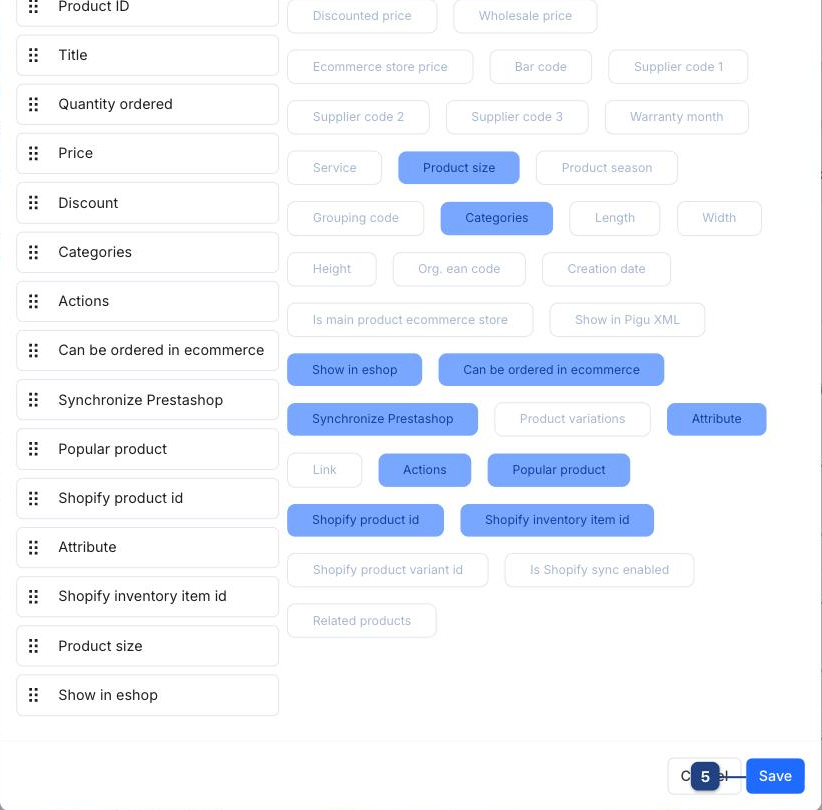
5 Save
Stores the layout and redraws the list. Cancel discards the changes.
The same dialog exists on other lists (companies, orders, warehouses) through the Configure columns button in their header, and each list remembers its own layout.