
Email and document templates
Every email the system sends (invoice sending, debt reminders, order status changes, repair notifications) and every PDF it prints (invoices, orders, quotes, proformas, repair sheets, reports) is built from a document stored under Other modules → Documents. You edit the text and layout there, then tell the system which document to use for which purpose in Configuration → Settings → Dokumentai.
Documents
Open Other modules → Documents. Documents are organised in groups; the demo tenant keeps templates under Šablonai with subgroups per area (sales, helpdesk, users, quotes).
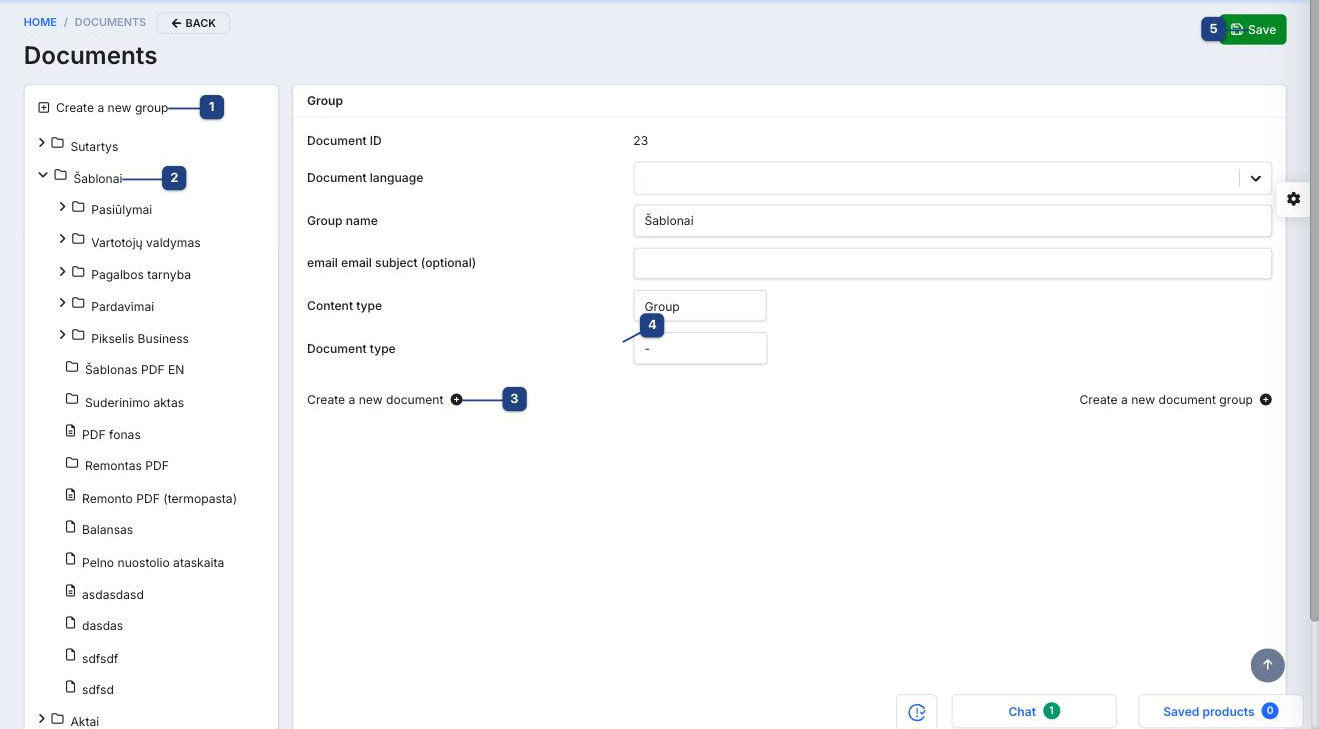
1 Create a new group
Adds a top-level folder. Groups only organise the tree; they have no effect on where a template is used.
2 Group tree
Click a group to open it and see its documents and subgroups. The panel on the right shows the selected item — for a group: Group name, an optional email subject inherited by its documents, and the Content type Group.
3 Create a new document
Creates a document inside the selected group. Create a new document group adds a subgroup.
4 Document type
What the document is for: an Email template, a PDF template, a PDF background, or a plain document. The type decides which settings can point to it.
5 Save
Saves the selected group or document.
Editing an email template
Click a document in the tree, for example Sąskaitos faktūros išsiuntimas (invoice sending).
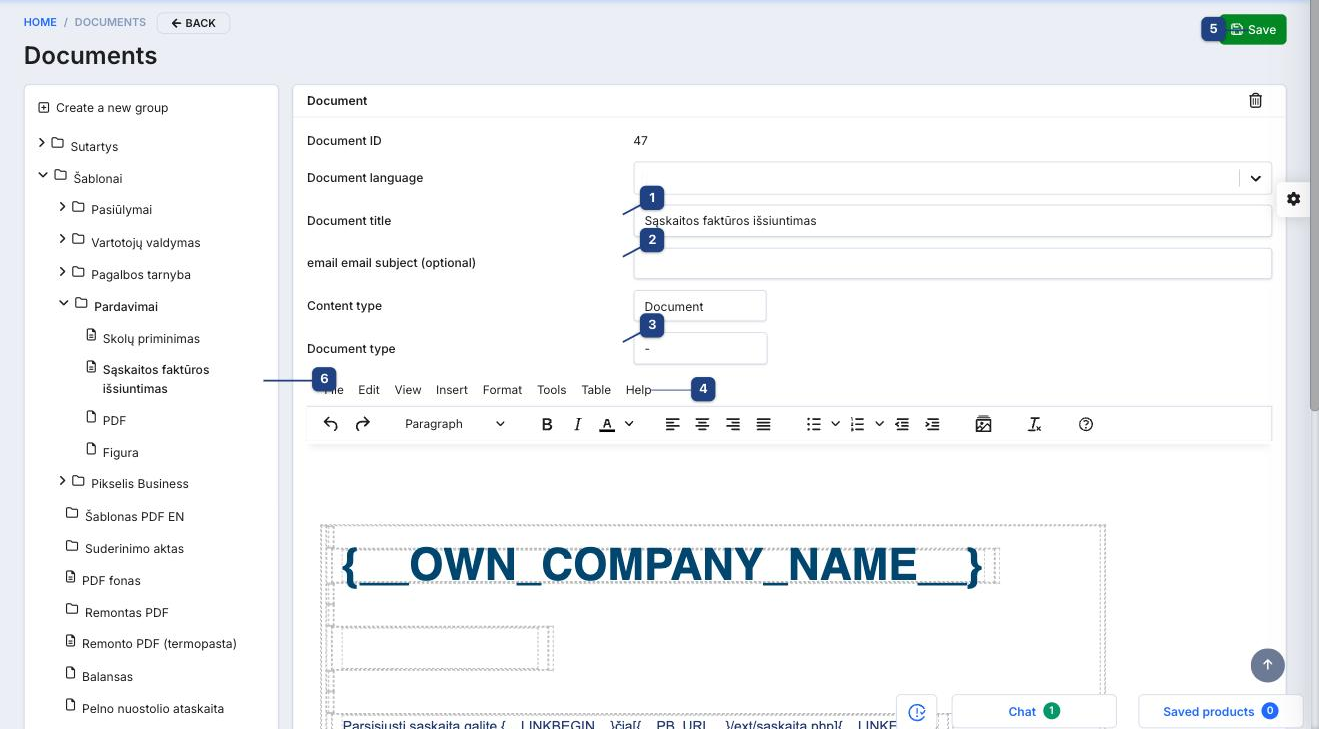
1 Document title
The name shown in the tree and in the settings picker.
2 email subject (optional)
The subject line of the email. Leave it empty to use the group's subject.
3 Document type and Document language
Set the type to Email template and, if you keep one template per language, the language. The system picks the document whose language matches the recipient.
4 Editor
A rich-text editor (menus File, Edit, View, Insert, Format, Tools, Table, Help). Write the email as it should arrive. Dynamic values are placeholders in double curly braces, such as the company name, the customer's name, the document number or a link to the PDF — see the Email templates reference for the list per document type. Placeholders are rendered when the email is sent, so a template preview shows them unresolved.
5 Save
Saves the document. Emails sent from now on use the new text; already sent emails do not change.
6 Document in the tree
The bin icon in the panel header deletes the document. A document that a setting still points to should be replaced in the setting first.
PDF templates work the same way, with HTML and Go template syntax instead of prose — see Invoice PDF templates and Order, quote and proforma PDF templates.
Assigning a template
A document does nothing until a setting points to it. Open Configuration → Settings and the Dokumentai tab.
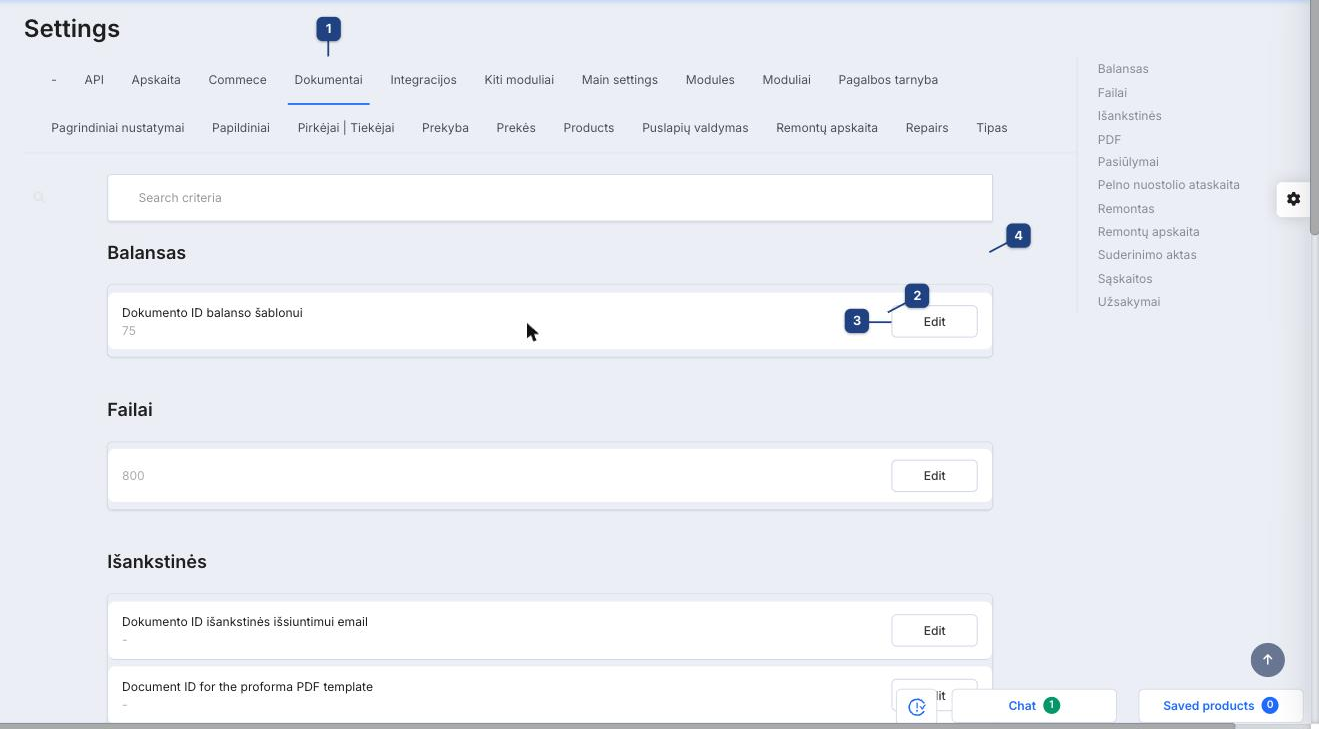
1 Dokumentai tab
Lists one setting per template slot, grouped by area (4Balansas, Failai, Išankstinės, PDF, Pasiūlymai, Pelno nuostolio ataskaita, Remontas, Suderinimo aktas, Sąskaitos, Užsakymai). Each row (2) shows the setting's description and the ID of the document currently assigned.
3 Edit
Opens the assignment dialog.
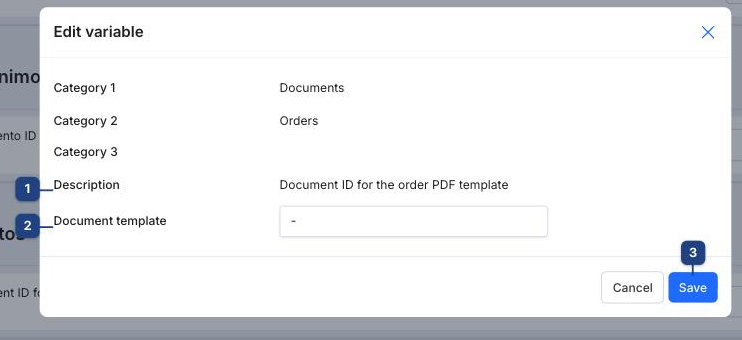
1 Description
Which purpose this slot serves, for example Document ID for the order PDF template or Dokumento ID išankstinės išsiuntimui email (the proforma sending email).
2 Document template
Pick the document from the list. Only documents of the matching type are offered.
3 Save
Applies immediately: the next email or PDF of that kind uses the chosen document.
Related
- Email templates reference — placeholders per email type
- Invoice PDF templates
- Order, quote and proforma PDF templates
- Order status change email