
Creating a sale (invoice)
A sale in Pikselis Business is an invoice: it takes the products out of the warehouse, records the customer's debt and produces the PDF you send. To make a sale, open a new sale document, pick the buyer and the warehouse, add the products, and save. Payment is recorded afterwards from the bank statement, the cash desk or the POS.
Open it from Sales → Invoices → Create, or click the Sale (…) shortcut in the top bar and choose Create a new sale.
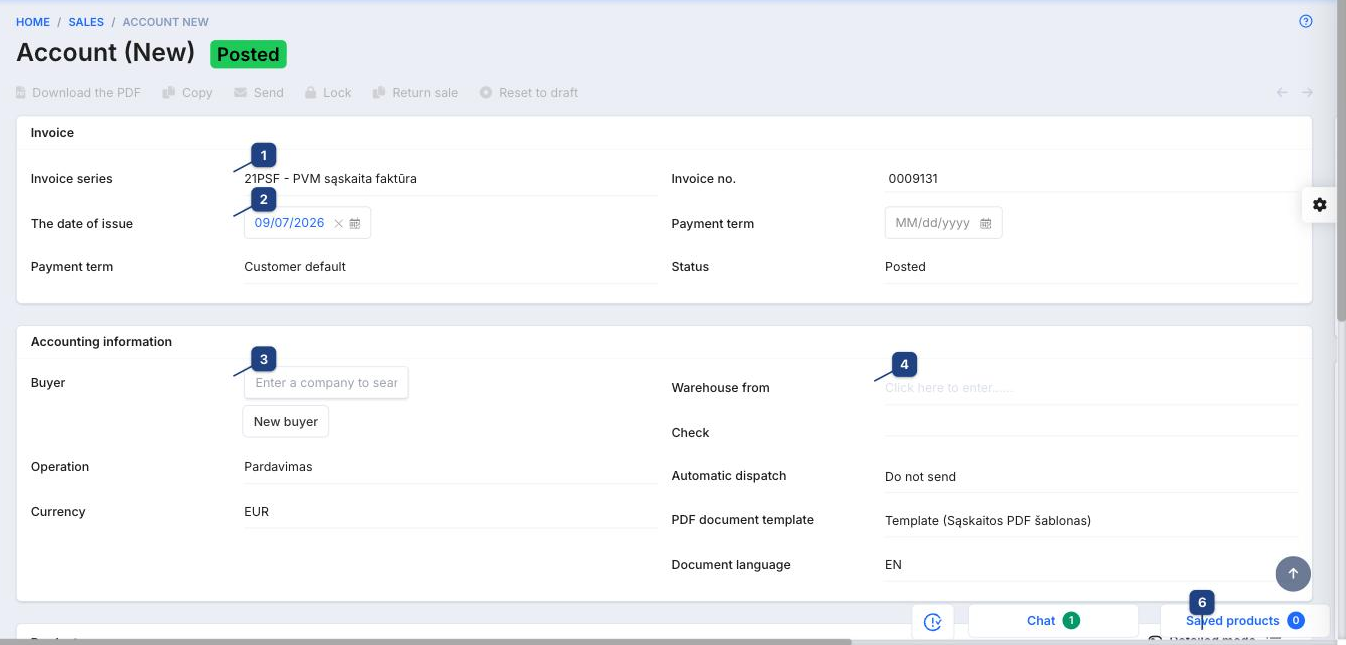
1 Invoice series and number
Invoice series picks the numbering series (for example 21PSF - PVM sąskaita faktūra for VAT invoices). Invoice no. is filled in from the series' counter; you can override it only while the document is a draft. Series are managed under Accounting → Settings → Document series.
2 The date of issue and payment term
The invoice date. Payment term defaults to the buyer's Customer default (set on the company card) and calculates the due date; pick another term or a fixed date if this sale differs. Status shows the document state — a new document starts as Posted once saved with lines, or as a draft.
3 Buyer
Type part of the company name or code in Enter a company to search and pick the buyer. Its address, VAT code, price field and payment term are copied onto the document. If the customer is not in the system yet, New buyer opens the company form in place.
Operation (default Pardavimas — sale) decides the accounting entries; Currency defaults to the company currency.
4 Warehouse from
The warehouse the goods leave. Stock is reduced in this warehouse when the invoice is posted, and the product's cost from this warehouse is used for the margin. Check marks the document as verified; Automatic dispatch can email the PDF on save; PDF document template and Document language choose how the printout looks.
Products and totals
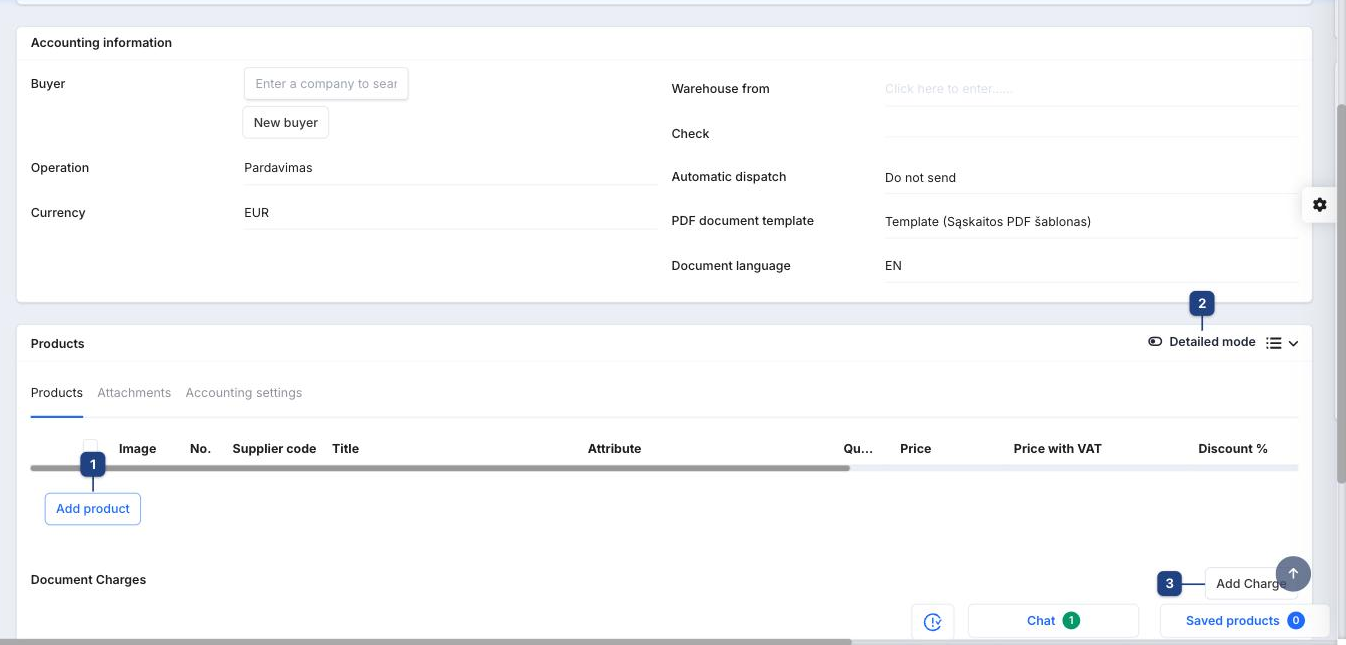
1 Add product
Adds a line. Search by name, article or barcode; the line takes the product's price for the buyer's price field, its VAT class and the quantity 1. Edit Qu. (quantity), Price or Discount % in the row. Lines show the Cost price so you see the margin before saving. Use the Attachments tab for files that travel with the invoice and Accounting settings for account overrides.
2 Detailed mode
Toggles the extra line columns (attributes, VAT class, cost).
3 Add Charge
Document Charges adds shipping or handling as a separate charge line, outside the product lines.
Totals. Total quantity, Without TAX, TAX and Amount with TAX are recalculated as you edit lines. Amount of debt and Paid amount change as payments are matched to the invoice.
Saving, printing and sending
Click Save (bottom right). Once the document is saved:
- Download the PDF opens the printable invoice in the chosen template and language.
- Send emails the PDF to the buyer's contact using the invoice email template.
- Copy creates a new sale with the same buyer and lines.
- Lock prevents further edits; Reset to draft reopens a posted document; Return sale creates the credit (return) document for this invoice.
The right-hand column holds the Actions comment thread, Followers who get notified, a Reminder, and integration fields (for example the Monet sync flags).
Recording the payment
An invoice stays in Amount of debt until a payment is matched to it:
- bank transfer — match the line on Bank statements;
- cash — create a cash income order under Payments → Cash desk;
- card at the counter — the POS creates the sale and the payment together.
Related
- Creating an order — reserve stock first, invoice later
- Creating a company
- Product list