
Bank statements
The Bank statements page is where imported bank transactions land so you can match each one to the right invoice or accounting entry. A matched line shows as Reconciled and stops counting toward your open work.
Open it from Accounting → Banks → Statements.
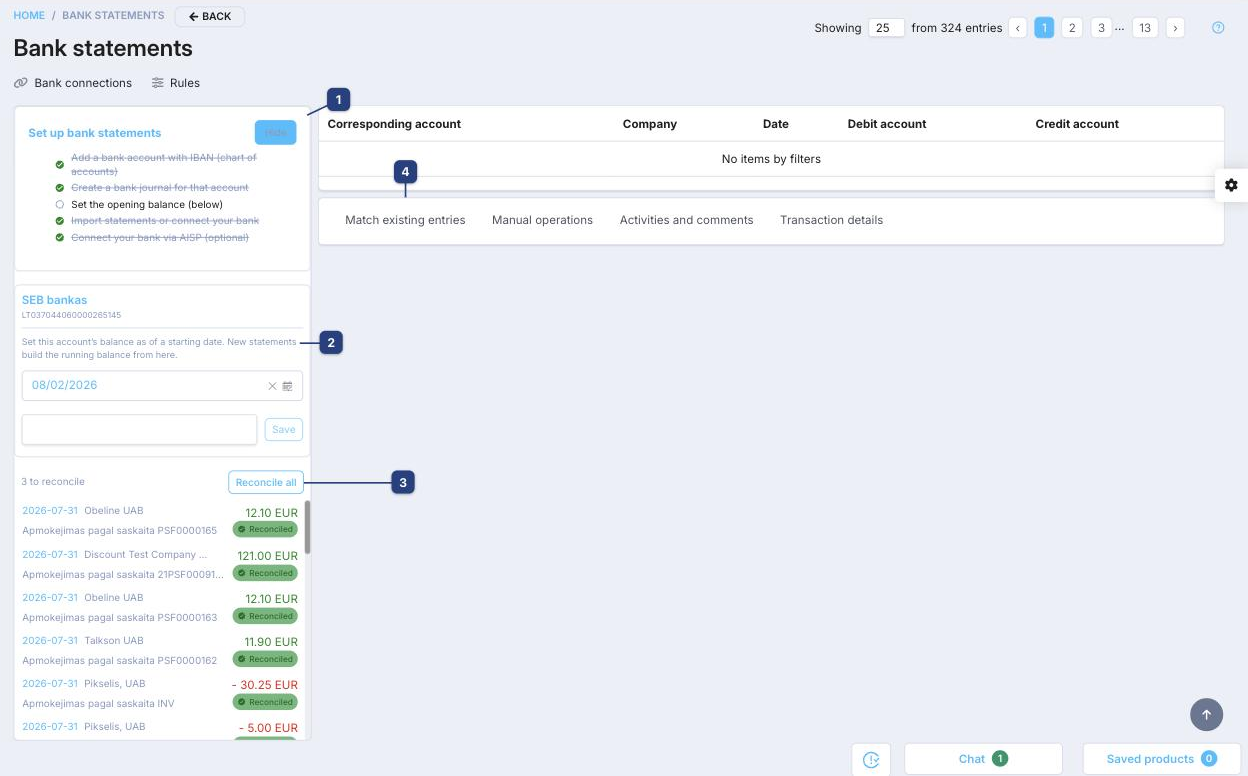
1 Set up bank statements
The first-time checklist. A statement needs each of these before it can reconcile:
- Add a bank account with IBAN in the chart of accounts
- Create a bank journal for that account
- Set the opening balance (see 2)
- Import statements or connect your bank
- Connect your bank via AISP — optional, for automatic statement feeds
Completed steps are ticked off; click Hide to dismiss the checklist.
2 Opening balance
Each bank account panel (for example SEB bankas, shown with its IBAN) sets the account balance as of a starting date. New statements build the running balance forward from that point. Pick the date, enter the amount, and click Save.
3 Reconciling statement lines
Each imported line shows its date, counterparty, amount (income in green, expenses in red) and description, tagged Reconciled or to reconcile. The counter (for example "3 to reconcile") shows how many still need attention. Reconcile all auto-matches every outstanding line at once; to work one by hand, select it and use the panel on the right.
4 The matching panel
With a line selected, the right-hand panel gives you four tabs:
- Match existing entries — link the line to an existing invoice or entry
- Manual operations — build a journal entry by hand when there is no match
- Activities and comments — leave notes or review the line's history
- Transaction details — inspect the raw imported transaction data
The results table lists the Corresponding account, Company, Date, Debit account and Credit account for each candidate.
Related
- Bank connections — manage the banks you import statements from
- Rules — reconciliation rules that auto-match lines