
Repair statuses
Every repair has a status (accepted, diagnosing, waiting for the customer, repaired, …). Statuses drive the repair list's tabs and filters, and each status can send the customer an SMS or an email when a repair reaches it. To add or change statuses, open Repairs → Statuses.
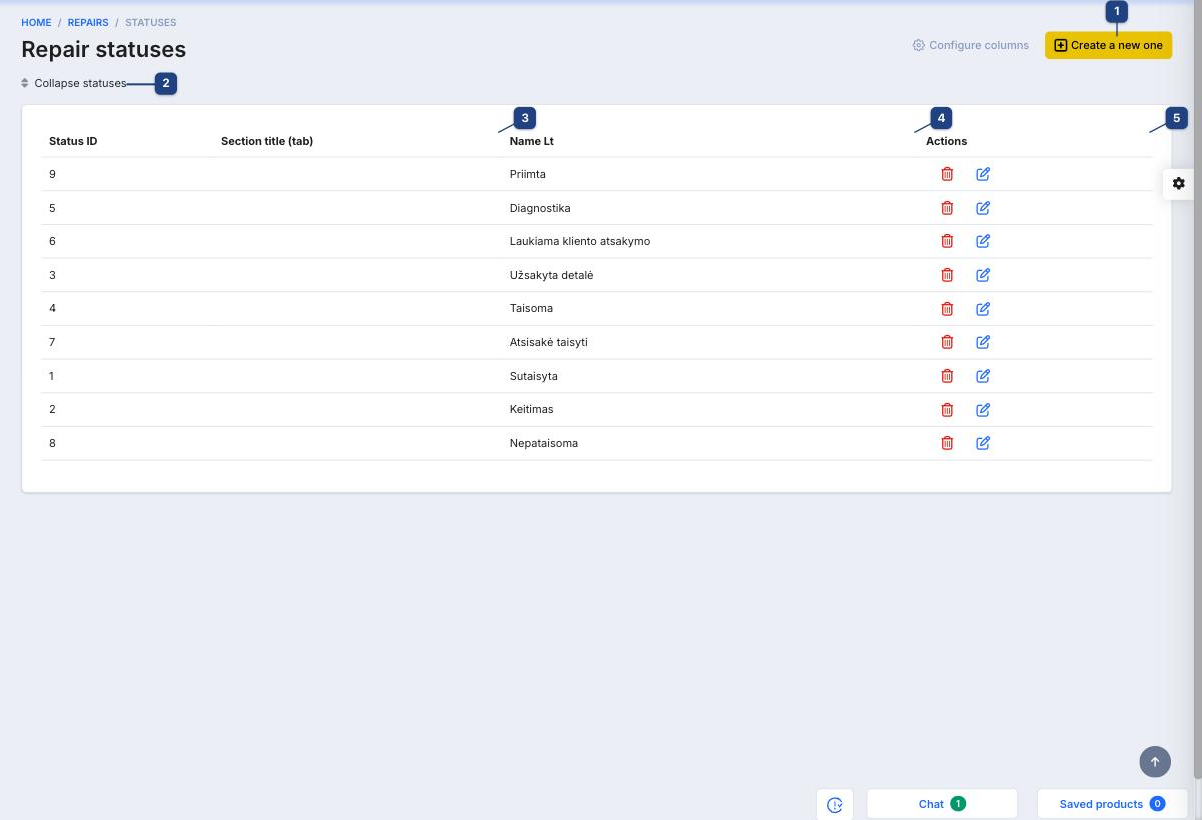
1 Create a new one
Opens the empty status dialog (below).
2 Collapse statuses
Switches the list into ordering mode: drag the rows to set the order in which statuses appear in the status picker on a repair. Click it again to return to the normal list.
3 Section title (tab)
The tab this status belongs to on the active repairs screen, for example Registration, Waiting or Completed. Statuses without a section show in the main list only.
4 Name Lt
The status name in the default language. Names in other languages are set in the dialog.
5 Actions
The pencil edits the status; the bin deletes it. A status that repairs still use cannot be deleted — mark it inactive instead.
The status dialog
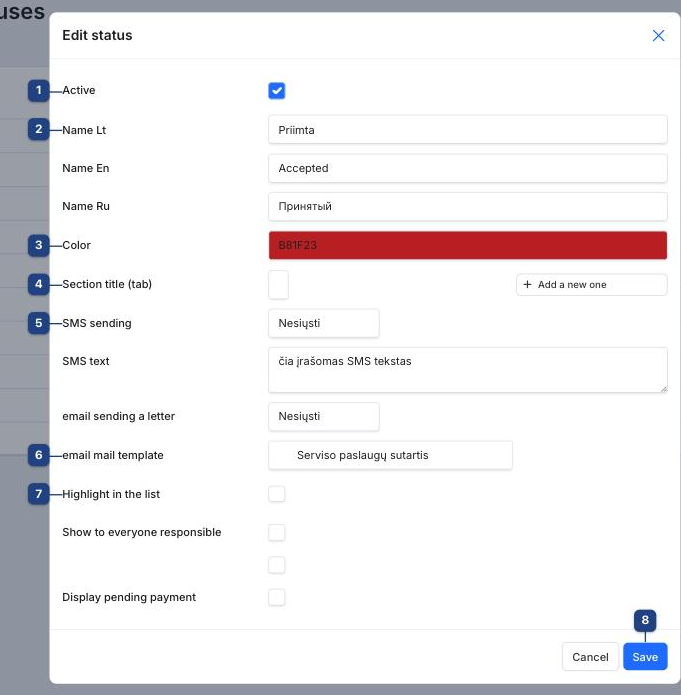
1 Active
Untick to hide the status from the picker without losing the history of repairs that had it.
2 Name Lt / Name En / Name Ru
The status name per interface language. The customer-facing texts (SMS, email) use the language of the repair's customer.
3 Color
The badge colour shown in the repair list and on the repair card. Pick distinct colours for the statuses staff look for most (waiting for parts, ready for pickup).
4 Section title (tab)
Pick an existing section or click Add a new one to create a tab. Sections group statuses on the active repairs screen so a technician can open, for example, only Waiting repairs.
5 SMS sending and SMS text
Set SMS sending to send a message automatically when a repair gets this status, and write the message in SMS text. A typical use is the Repaired status: "Your device is ready for pickup". Sending requires the SMS module to be configured under Helpdesk → SMS.
6 email sending a letter and email mail template
The same for email: switch sending on and choose the template (for example the service contract template on acceptance). Templates are managed under Documents → Email templates.
7 Highlight in the list and the other flags
- Highlight in the list — repairs in this status stand out in the repair list.
- Show to everyone responsible — the repair is visible to all assigned technicians, not only the current one.
- Display pending payment — the repair shows a payment-due marker, for statuses such as Repaired where the customer still has to pay.
8 Save
Saves the status. Changes apply immediately to the repair list and the status picker.
Related
- Automated workflows — for actions beyond SMS and email on a status change
- Email templates